

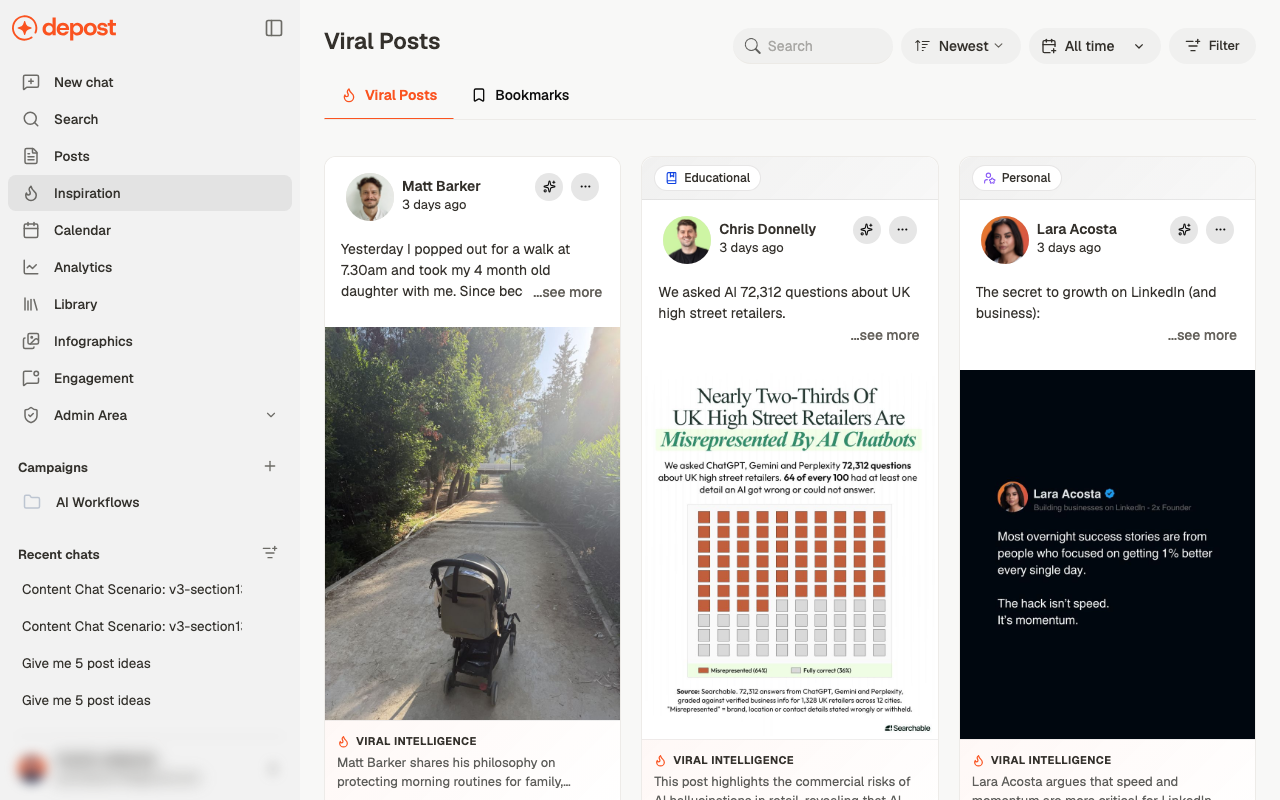
Reading the feed
Each card shows the post as it ran — author, age, copy, and any image or carousel. Two things on top of that are worth knowing about:- A category badge such as Educational or Personal, so you can tell at a glance what kind of post it is
- Viral Intelligence — a short explanation of why the post worked
Narrowing it down
- Search for a topic or phrase
- Newest to change the sort
- All time to restrict the period
- Filter, which opens a panel
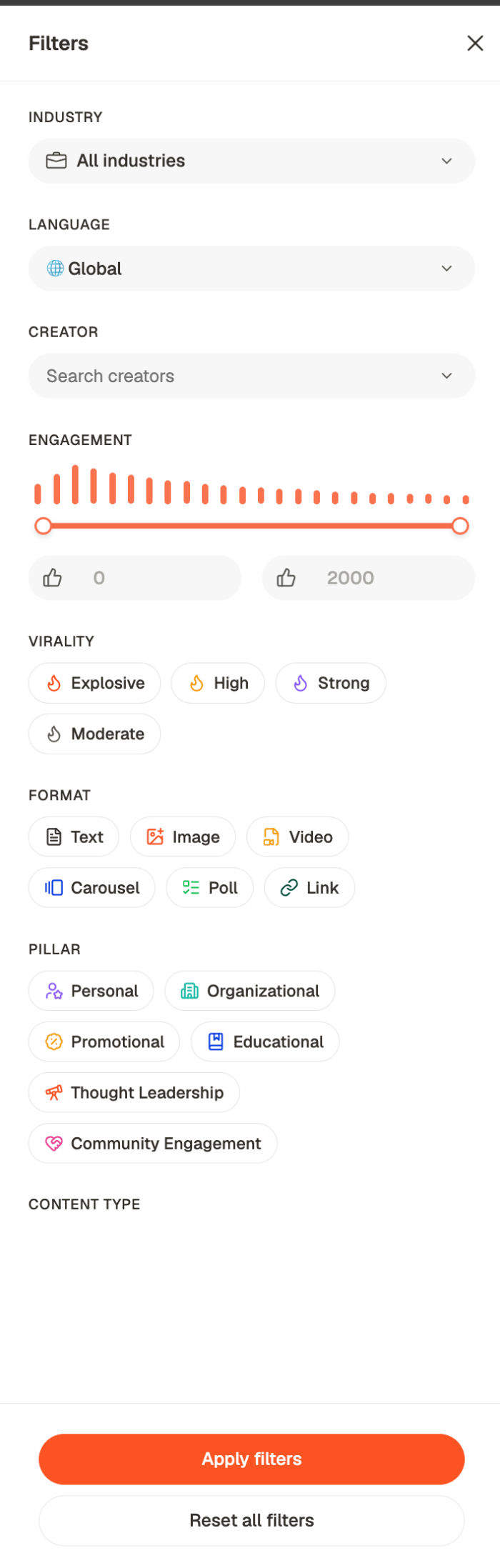
Nothing changes until you press Apply filters, and Reset all filters puts it back.
Filter before you browse. The feed is large enough that scrolling it untargeted is a way to
lose twenty minutes.
Viral Intelligence
Open a post and you get a full read on it, not just the text.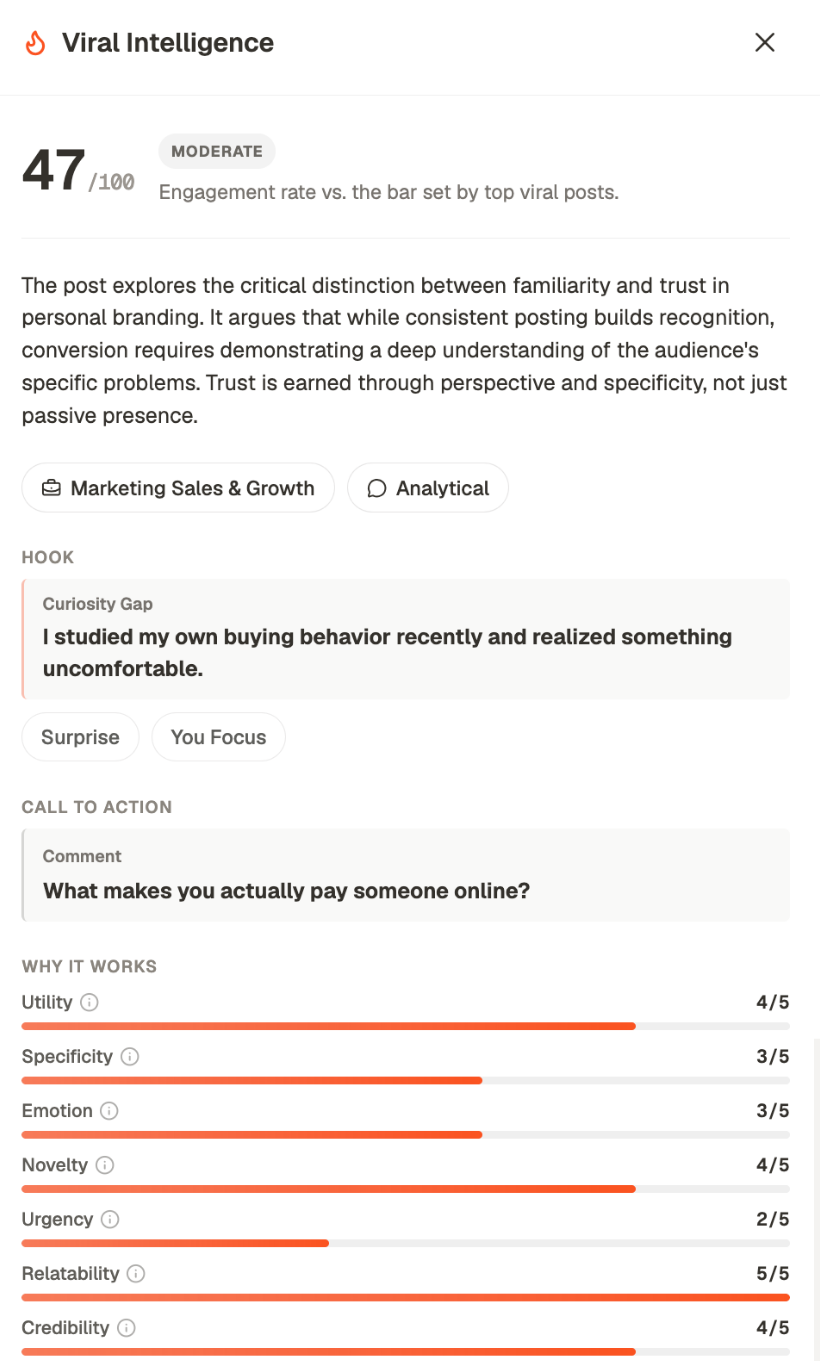
- Hook — the opening line, and what kind of hook it is: a Curiosity Gap, a Surprise
- Call to action — the ending, and what it asks for
- Why it works — seven dimensions scored out of five: utility, specificity, emotion, novelty, urgency, relatability, credibility
Acting on a post
Each card has two controls in its top corner: Repurpose, which takes the post into chat so you can ask for your own version, and a more-actions menu for saving and viewing the original.Bookmarks
The Bookmarks tab holds what you’ve saved — from the feed here, or from LinkedIn, X, Reddit and Threads via the browser extension. Tag them as you save and they stay findable. Bookmarks are also a chat context source, so anything saved here can inform what Depost AI writes. See context.A workflow that works
1
Save as you come across things
Build the collection continuously. Searching for examples when you’re already stuck is
the slow way.
2
Read the intelligence, not just the post
Note the pattern — the hook shape, the structure, the kind of proof used.
3
Ask for your own version in chat
Bring the pattern, not the post. See find what’s trending.
Related
Find what's trending
Ask chat to analyze these patterns and benchmark you against them.
Give chat the right context
Viral Posts and Bookmarks as sources for what you write.
Get ideas and angles
Turn a pattern into something of your own.
Library
Your own material, rather than other people’s.