

It always starts from something
An infographic is built from material that already exists in the thread — a draft, an idea, or a post. Asking cold won’t work:“Make an infographic comparing manual posting to a content system” → “I need something to create infographic prompt from, and there is nothing in this thread yet to use.”So give it something first.
- From a draft
- From an idea
- From an existing post
The usual route. Write the post, then convert it:
- “Write a short post contrasting manual posting with a content system”
- “Now turn that post into an infographic”
What happens next
Depost AI builds the content first — the thesis, the blocks, the labels — then renders the image from it. That order matters, because it’s your chance to intervene. If the wording is wrong, say so before asking for the image. Fixing text after the render means generating again.1
Ask for the infographic
You get the structure and copy back first — a title, the blocks, the labels. No image
yet.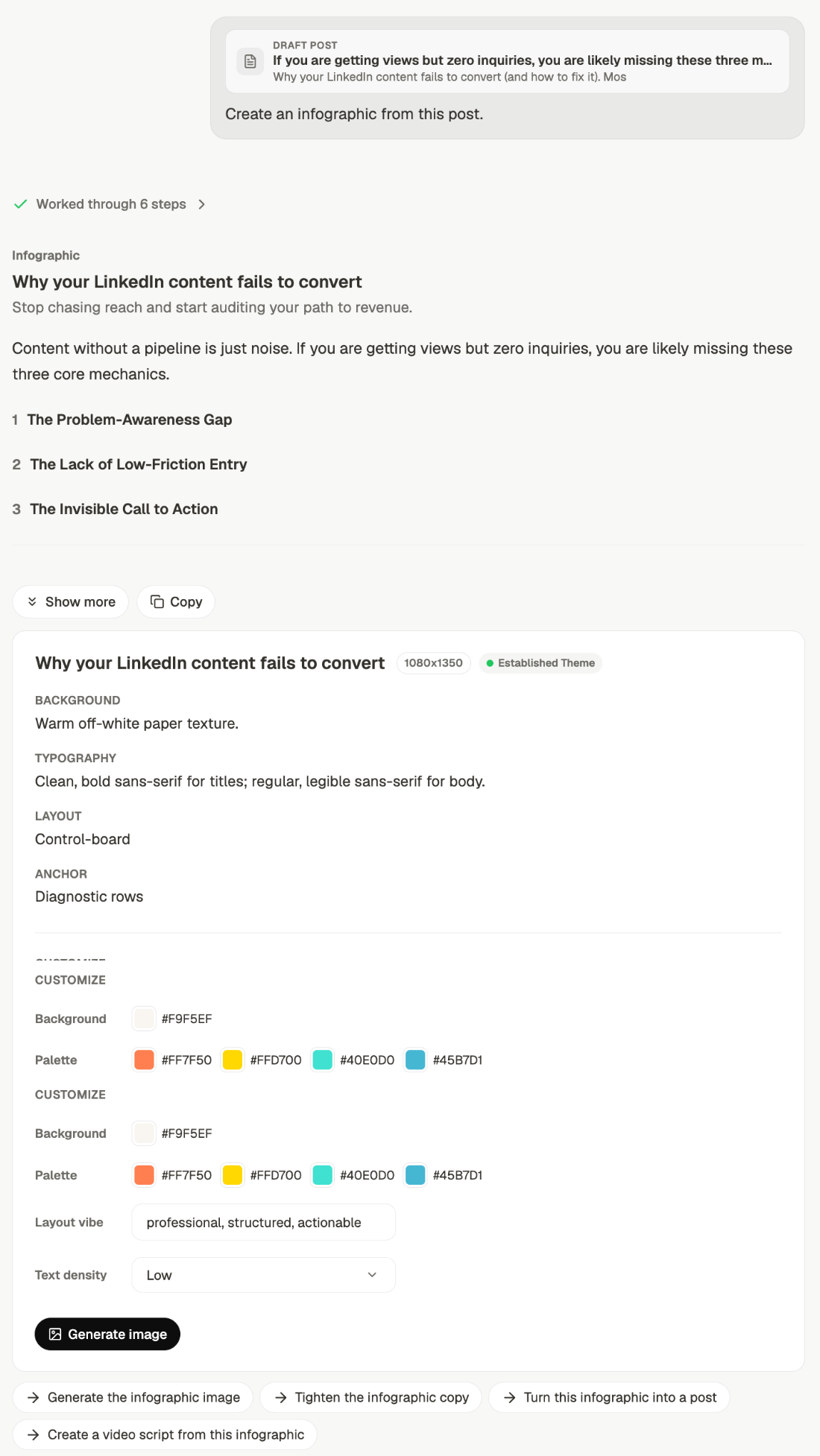 Underneath sits a card describing how it will be drawn — the size, the background,
the typography, the layout, and whether your saved theme is being used.Customize is where you change any of that before anything is rendered: the
background color, the palette, the layout vibe in your own words, and the text
density. Then Generate image.Text density is the one worth touching. Low is usually right — an infographic is
read at a glance in a feed, not studied.
Underneath sits a card describing how it will be drawn — the size, the background,
the typography, the layout, and whether your saved theme is being used.Customize is where you change any of that before anything is rendered: the
background color, the palette, the layout vibe in your own words, and the text
density. Then Generate image.Text density is the one worth touching. Low is usually right — an infographic is
read at a glance in a feed, not studied.
2
Correct the words
“Change the middle section to talk about distribution, not creation.” Cheap now,
expensive later.
3
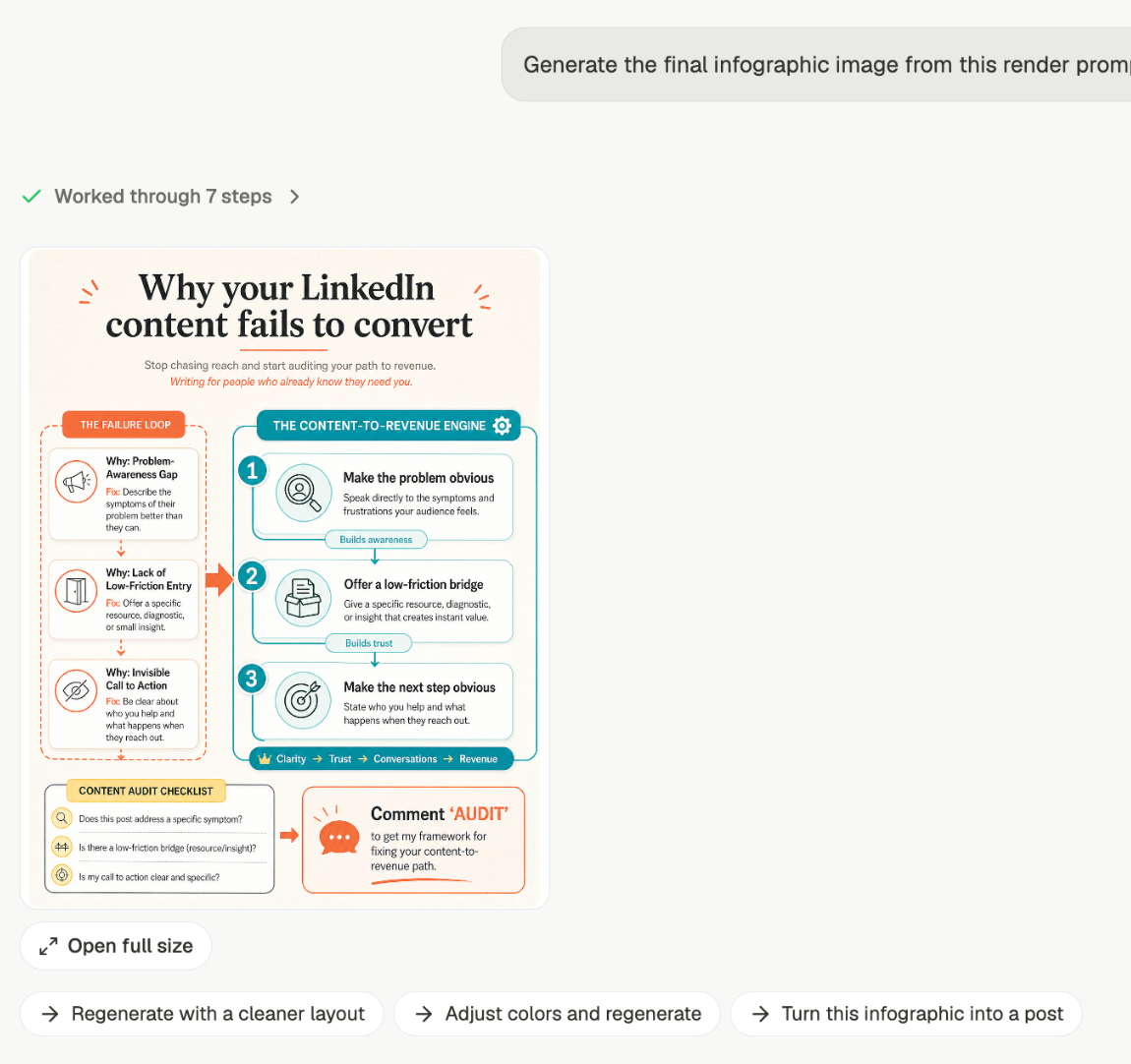
Ask for the image
“Generate the infographic image”. It renders in your visual style and lands in your
gallery.
It lands on the post
If the infographic came from a draft, it attaches to that post rather than sitting in the thread on its own. The chat panel marks it Attached, and it’s there in the editor next to the text, ready to publish together.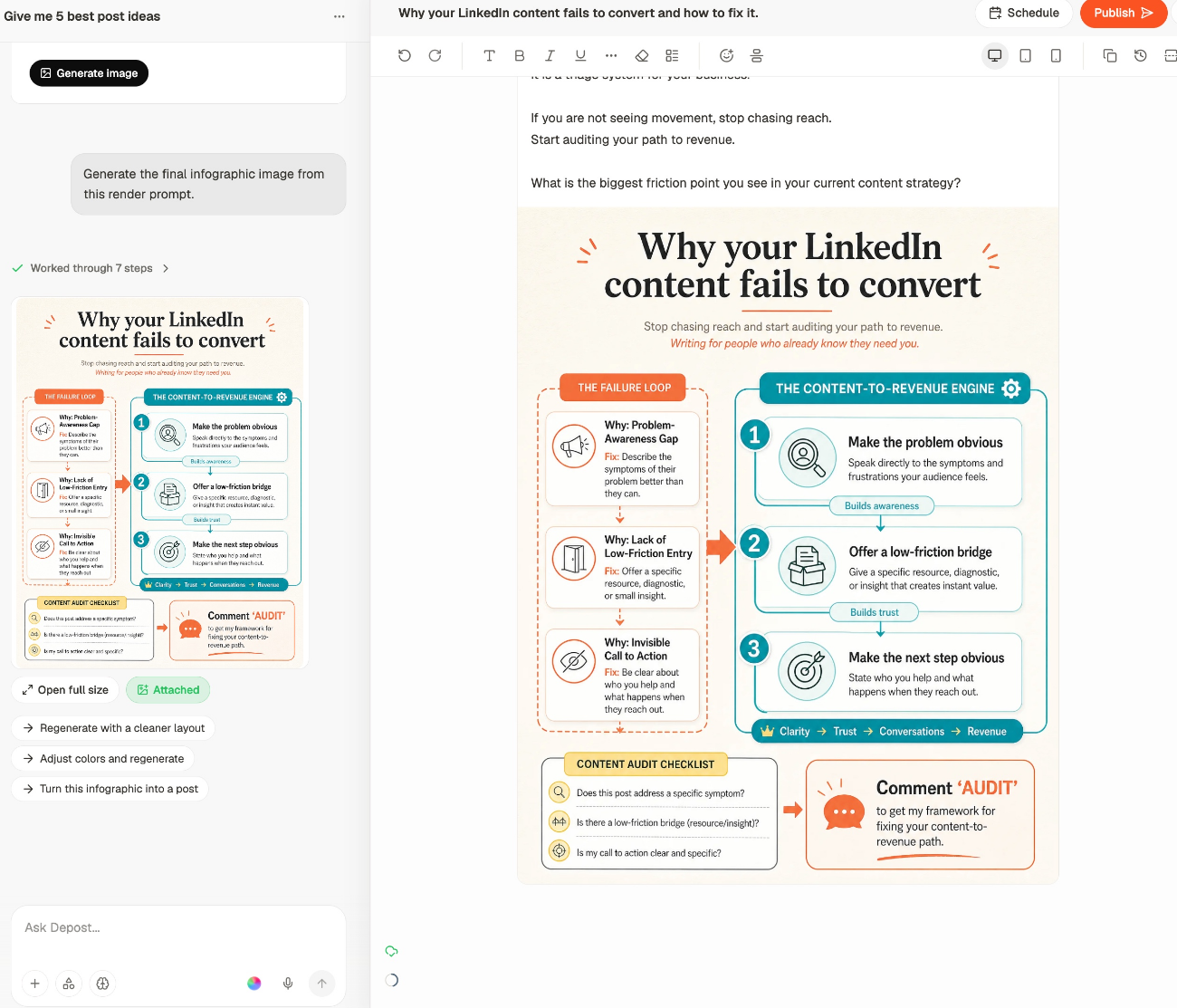
Getting a better one
Give it a shape
Give it a shape
Infographics work when there’s a structure to show — stages, a comparison, a framework,
a before and after. A list of tips is a post, not a visual.
Less text than you think
Less text than you think
The point is to be readable at a glance in a feed. If it needs reading, write a post.
Set your style first
Set your style first
Without a visual style, output won’t look like your brand. See
your visual style.
Related
Your visual style
Make generated visuals look like yours.
Infographics gallery
Everything you’ve generated.
Repurpose
Other formats from the same material.
Add media
Getting a visual into a post.