

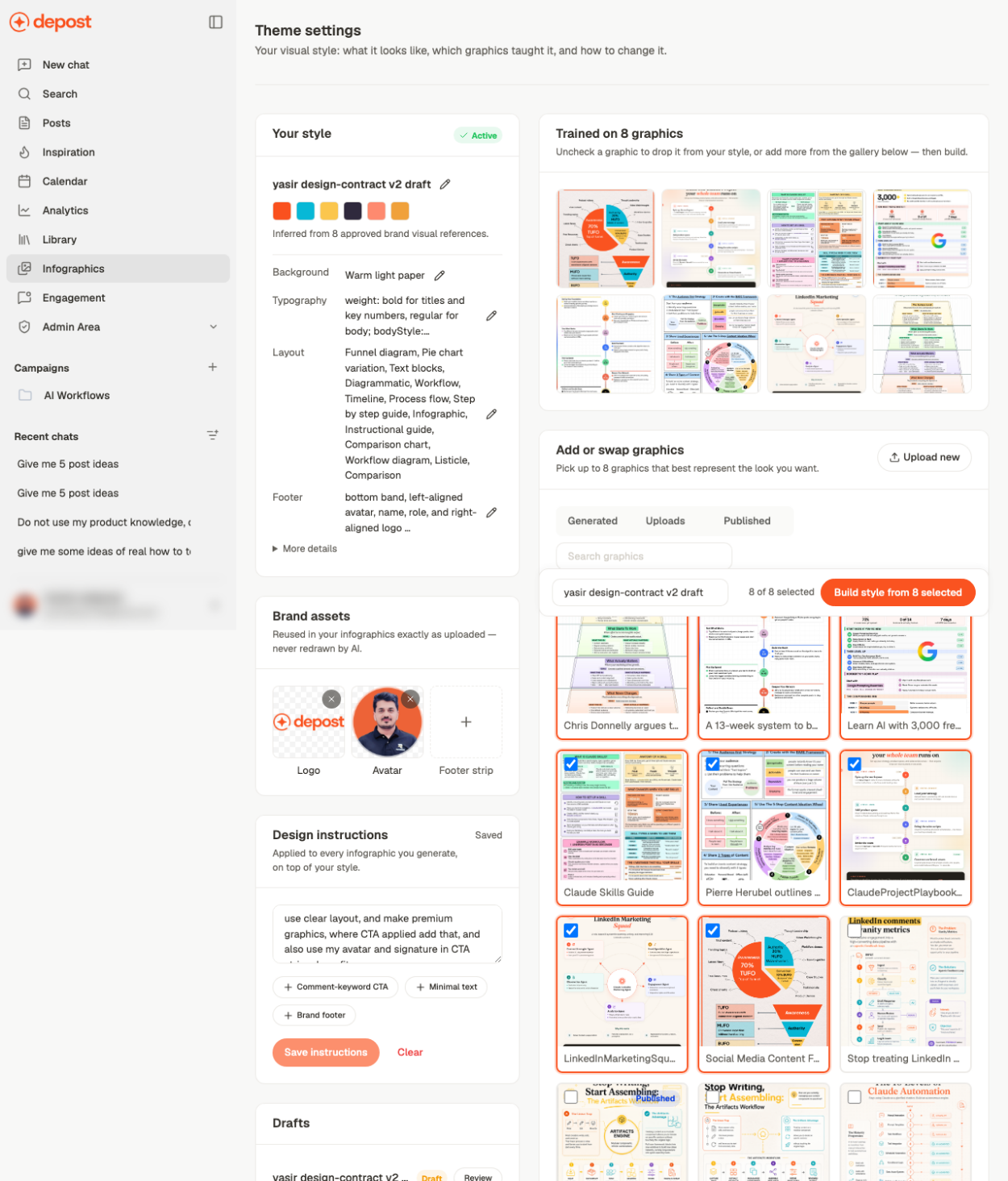
Building a style
Depost AI learns from graphics you point it at. Sources are grouped as Generated, Uploads, and Published, so you can build a style from work you’ve already put out rather than describing it from scratch. Pick the ones that look how you want future visuals to look. A tight set of five consistent graphics teaches a clearer style than twenty inconsistent ones.What you can adjust
Brand marks
- Brand footer puts a consistent strip on every visual
- Upload footer strip, Remove logo, Remove avatar control what appears in it
- Comment-keyword CTA adds the “comment KEYWORD to get it” call to action
- Minimal text biases output toward less copy
Avoids
Edit avoids is the underused one. It records what you don’t want — a color that clashes with your brand, a layout you dislike, clip-art. Negative instructions are often more effective than positive ones, because they rule out the defaults you keep having to correct.Instructions
Save instructions stores free-text direction applied to every render. Keep it short and concrete. Clear removes it, and Review shows what’s currently in effect.Styling one image like another
Attach a design in chat and ask for something in its style, and that reference stays attached to the thread. It isn’t a one-off — everything you generate afterwards in that conversation is styled from it. The composer shows this as a chip reading Styling from: and the design’s name, with an X to clear it. To stop it, click the X — or start a new chat, since the reference belongs to the thread.Related
Create an infographic
Where the style gets applied.
Infographics gallery
Everything you’ve generated.
Brand settings
Logo and avatar used in the footer.