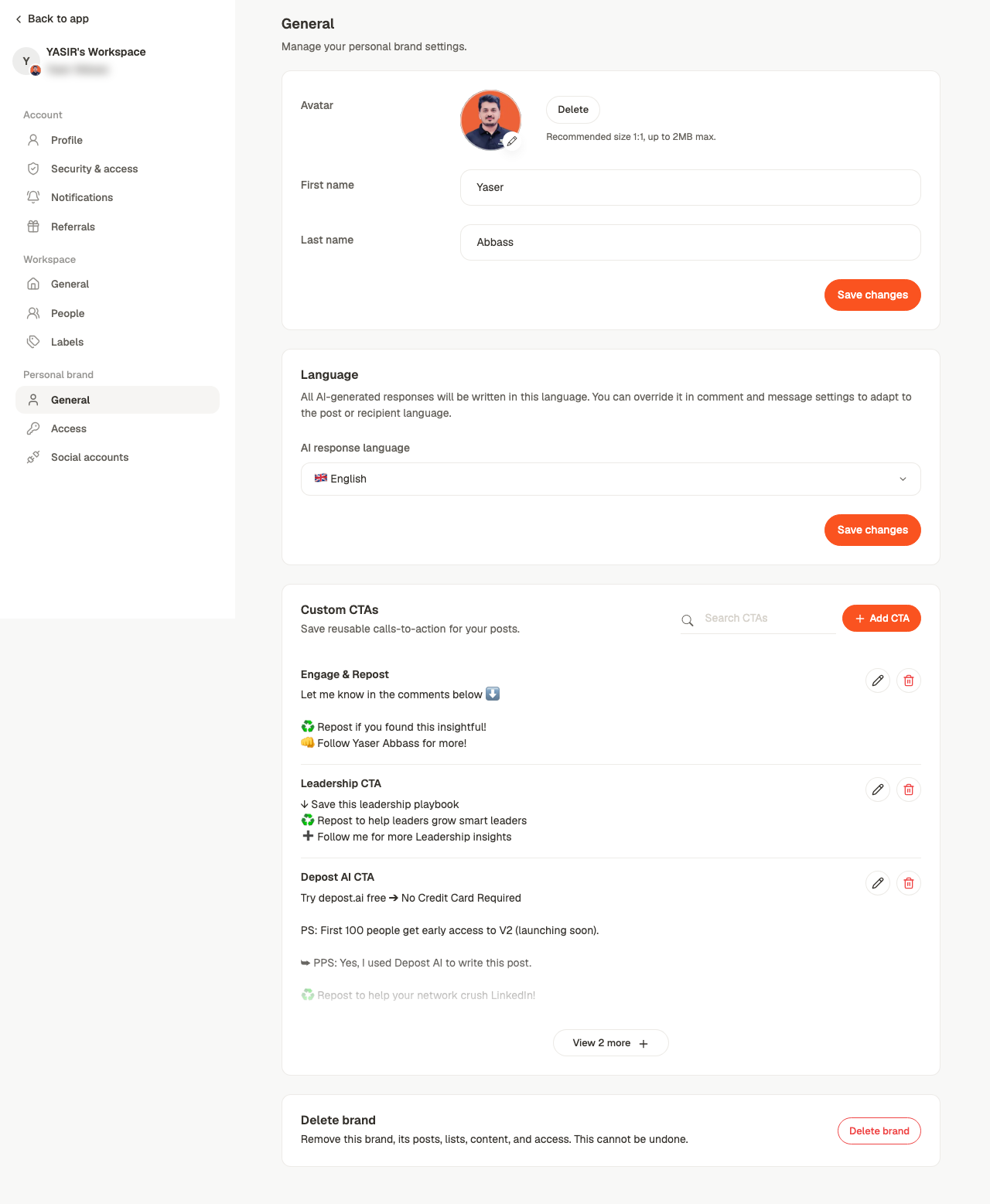
Under Settings → Personal brand. Everything here belongs to one brand — switch brand first if you’re managing several.

General

Brand settings showing avatar, name fields, AI response language and delete brand
AI response language is per brand, which is what lets one workspace run an English brand and a German one without either drifting. Delete brand removes the brand and its content. Like deleting a workspace, there’s no undo.

Social accounts
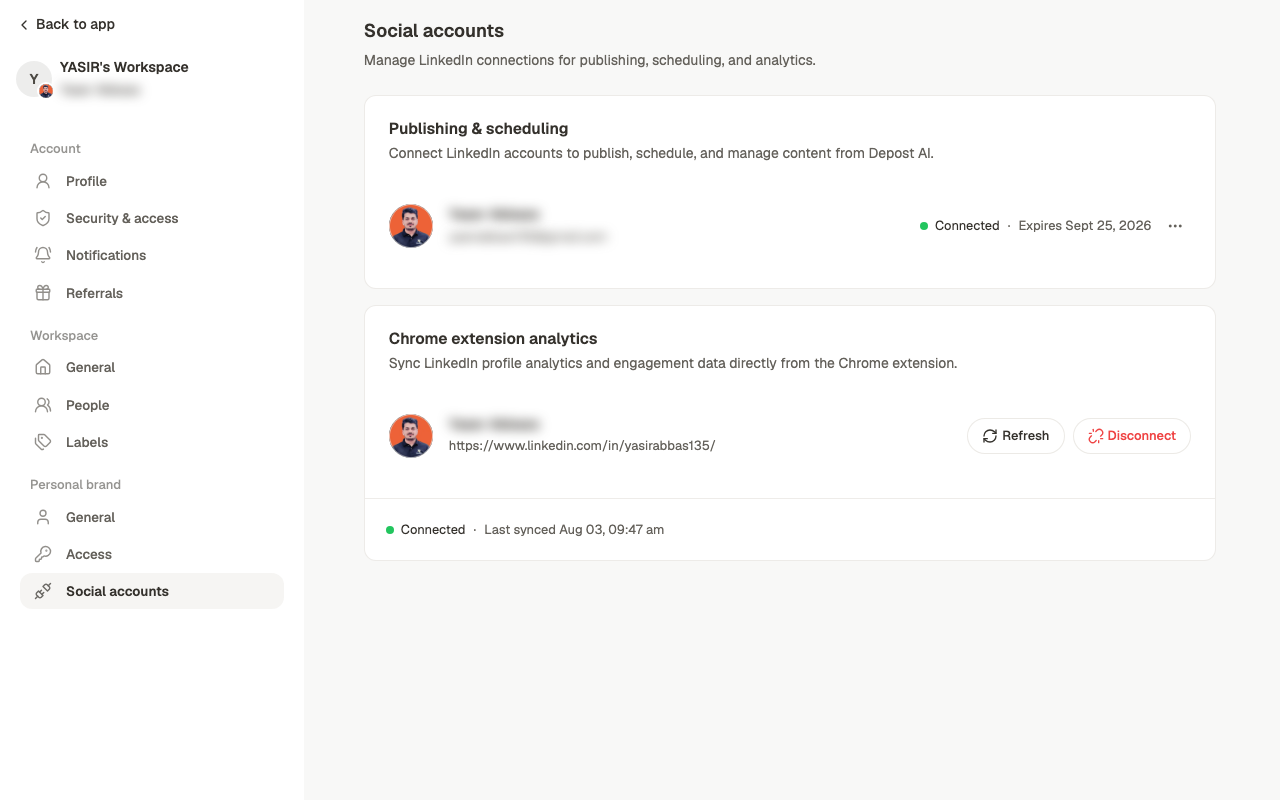
The social accounts screen showing connected LinkedIn accounts
The LinkedIn account this brand publishes through, and the extension’s connection status. Check here first when a post lands in Failed or analytics look stale — an expired connection is the usual cause of both. See troubleshooting.

Access

Access controls who can work on this brand. It’s separate from a person’s workspace role: an Editor is only an Editor on the brands they’ve been granted.
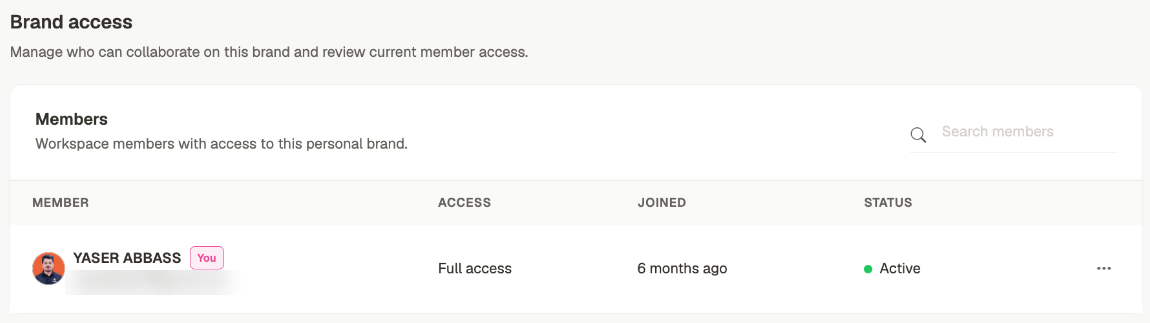
The Brand access screen listing workspace members with access to this brand, each with their access level, when they joined and whether they are active
Each row shows the access level, when they joined, and whether they’re still active. The list is only workspace members — granting brand access doesn’t invite anyone, so add them to the workspace first. See invite your team. That separation is what makes client work practical — see running client work.

Workspaces and brands

How brands sit inside a workspace.

Invite your team

Roles, and granting brand access.

Settings

Which of account, workspace or brand holds what.

Troubleshooting

When a connection has lapsed.