

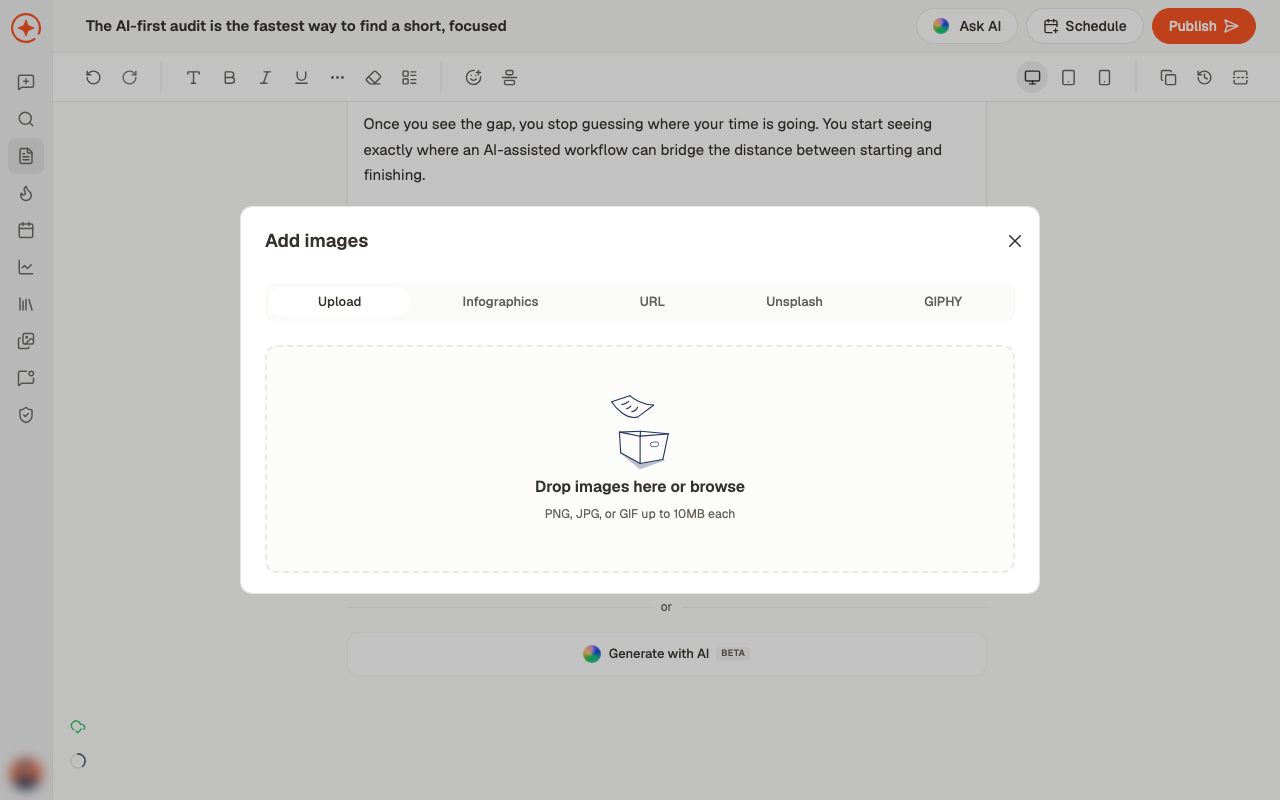
What you can add
Images
One or several. Drop them in or browse.
Video
With an optional thumbnail — worth setting, since it’s what people see before pressing
play.
PDF carousel
A multi-page PDF that LinkedIn shows as swipeable slides.
Poll
A question with options and a duration.
Carousels
A carousel is a PDF. Each page becomes a slide, so build it at the size you want it read — square or portrait works better than landscape, because it takes up more of the feed. If you want Depost AI to write one, ask in chat for carousel content and it will structure the slides. See repurposing.Polls
Polls need a question, options, and a duration. They tend to get engagement, but that engagement is shallow — a vote is not a conversation. Use them to learn something, not to game reach.Choosing a format
No media
No media
Perfectly normal. A well-written text post is not a lesser post, and it’s the fastest to
produce.
An image
An image
Use one when it shows something words would labour — a chart, a screenshot, a before and
after. A stock photo adds nothing.
A carousel
A carousel
When the idea has steps or parts that each deserve their own moment.
Video
Video
When your face or voice is the point — a story, an opinion, a demo.
Related
Edit a post
Where media is added.
Create an infographic
Generate a branded visual instead of uploading one.
Repurpose
Turn a post into carousel content.