

Depost Sync
When you signed up, Depost AI read your profile and your recent posts, up to the last 40, once. That snapshot is what your strategy and voice were built from, and it doesn’t refresh itself. Sync is what keeps it current afterwards. It re-reads your published posts and their performance in the background, so analysis is about what you published recently rather than what existed on the day you joined. Some LinkedIn metrics are only visible while you’re signed in on LinkedIn itself, which is the other reason it exists — those numbers can’t be fetched any other way.It only reads, and only your own material. Sync runs periodically, stays within
LinkedIn’s normal usage limits, and never posts, comments, messages, or visits profiles
for you. Those are the behaviors that get accounts restricted, and it doesn’t do them.
The engagement extension
This one is hands-on. It puts Depost AI inside LinkedIn while you’re reading, which is where most bookmarks and prospects actually get added — not from the dashboard.- Save posts to your bookmarks as you come across them
- Add people to your lead lists from a profile or a comment thread
- Draft replies using your brand voice and reply preferences
Connecting either one
1
Install it
From the Chrome Web Store.
2
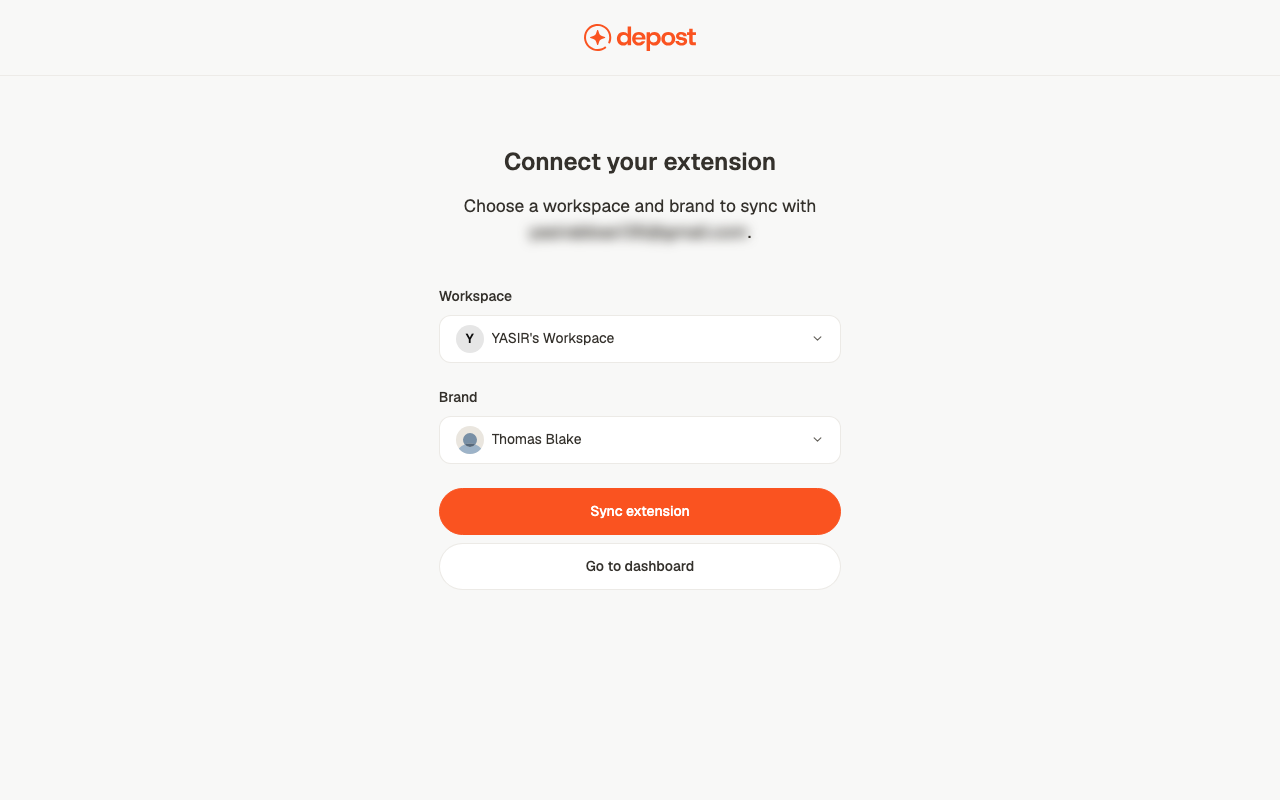
Choose where things land
On first connect you pick a workspace and a brand. Saved posts, prospects and
synced stats all go there — worth getting right if you run more than one brand.
3
Check it's connected
Settings → Personal brand → Social accounts shows connection status.
Related
Your first week
Where Sync fits in setup, and what works without it.
Engagement
Where saved prospects appear.
Inspiration
Where saved posts appear.
Analytics
The data Sync keeps current.