

Creating a list
Click New list at the end of the chips, name it, and it appears alongside the others.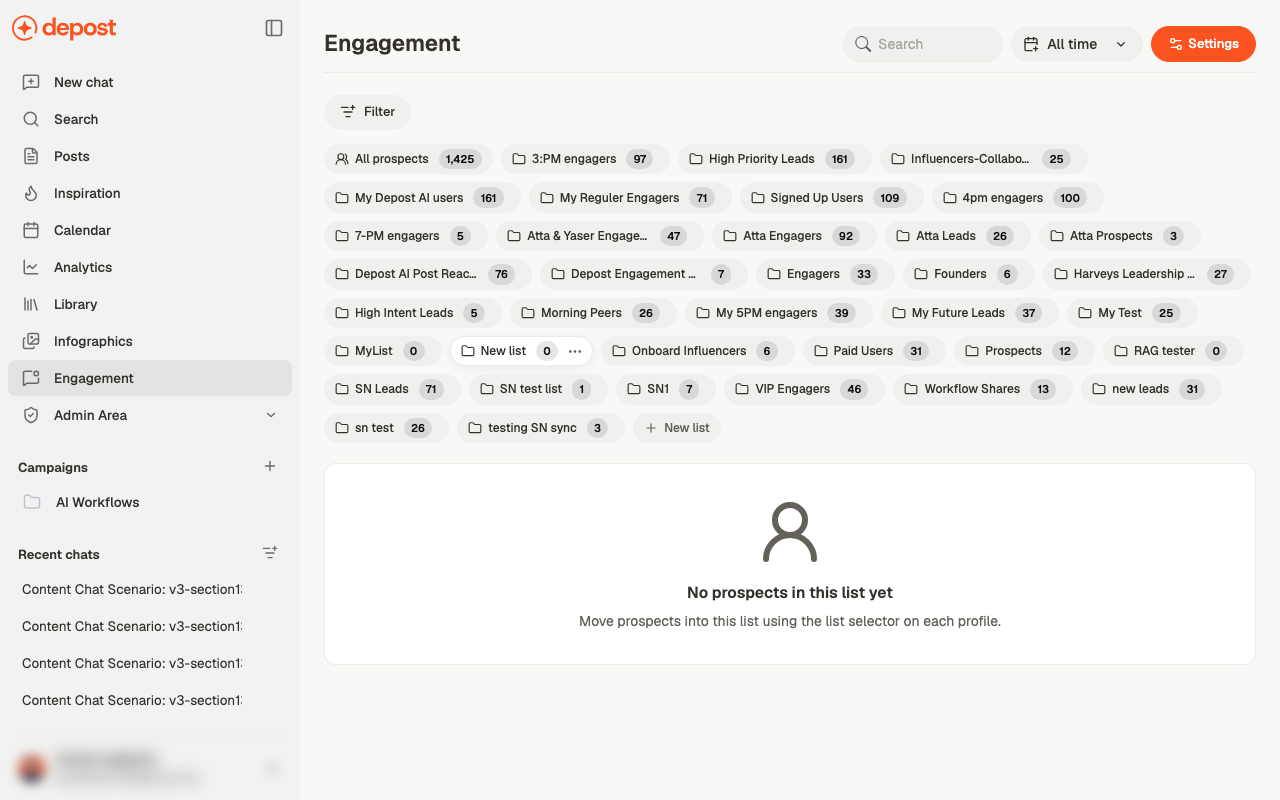
Adding people
Prospects come from LinkedIn, not from a form here. While you’re reading — a post, a comment thread, someone’s profile — the browser extension lets you add that person to a list.1
Install and connect the engagement extension
Not Depost Sync — that one only reads your own stats. Pick the workspace and brand the
prospects should land in. See the extensions.
2
Open the person on LinkedIn
Their profile, or their comment on a post.
3
Add them to a list
Use the extension to save them. They appear in Engagement against the brand you
selected.
Working the lists from LinkedIn
Your lists don’t stay in the dashboard. The extension carries them onto LinkedIn, so the list you built is there while you’re reading: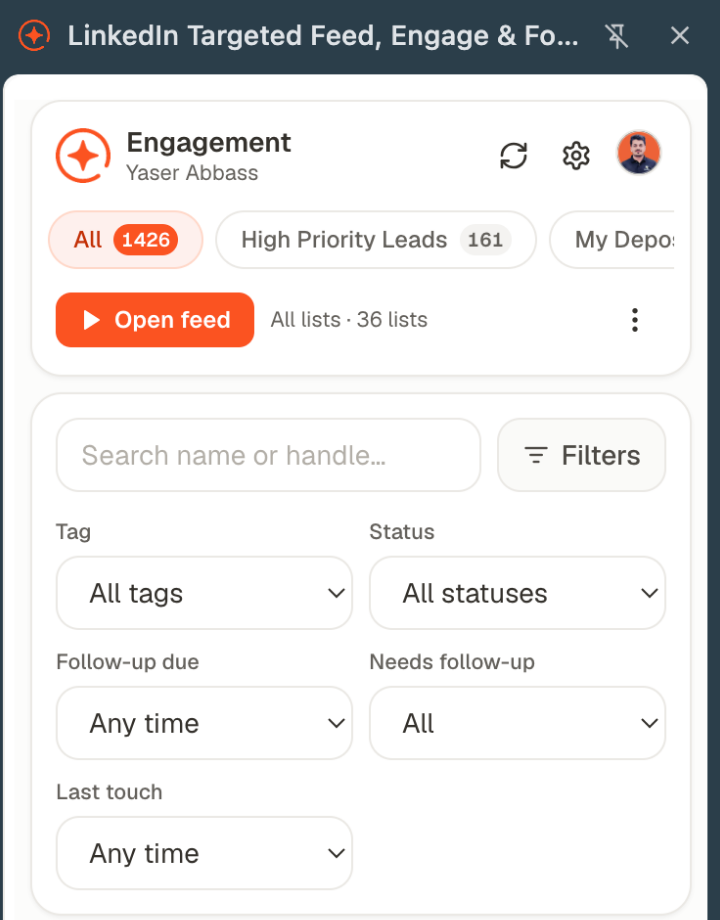
Moving people between lists
Every prospect row has a list selector and a status. Both are dropdowns on the row, so re-filing someone takes one click without opening a detail screen. Prospect actions on the row covers the rest. Lead list actions on a list chip covers renaming and removing the list itself.Statuses
Each prospect carries a status — New on arrival, moving through whatever stages you use, with Won and Warm among them. Status and list are independent: the list is who they are, the status is where the conversation has got to.Finding people
- Search by name
- Filter to narrow by list and status
- All time to restrict by when they were added
Related
Engagement
The screen these lists live on.
Comments and messages
What gets said once someone is on a list.
Chrome extensions
Where prospects are actually added.