

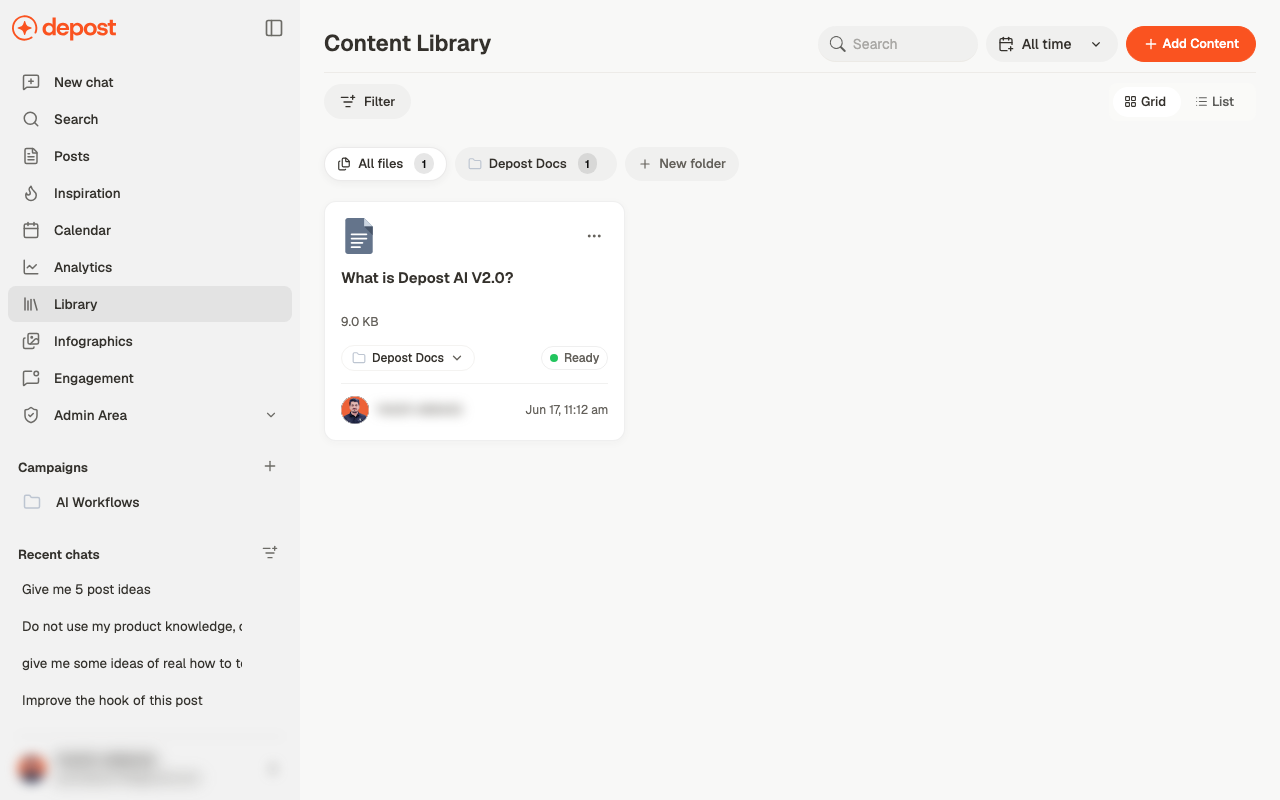
Adding files
Use Add Content in the top right. Uploaded files show a size, the folder they’re in, and a status — Ready means it’s been processed and can be used in chat. Give a new file a moment before relying on it. A file that hasn’t finished processing won’t contribute to what chat writes.Folders
Files start under All files. Use New folder to group them, then assign a file to a folder from the dropdown on its card. Each folder chip shows how many files it holds. Worth doing early. A flat library is fine at five files and unusable at fifty, and moving things later is slower than filing them as you go.Finding things
- Search by filename
- Filter to narrow the list
- All time to restrict by when a file was added
- Grid or List — list is easier to scan once you have a lot
Using it in chat
The library is one of the context sources, labelled Content Library in the composer’s Use context from menu. It’s on by default, so anything you upload is available to draw on without further setup. Two ways to use it:Leave the source on
Depost AI finds what’s relevant across your library. Good when you’re not sure which
document matters.
Attach one document
Use Select from library in the composer’s + menu. Precise when you know exactly
which file the request is about.
Shared across the workspace
Files uploaded at workspace level are visible to everyone in that workspace. Keep shared reference material there, and anything specific to one brand with that brand.Related
Give chat the right context
How Content Library is used alongside your other sources.
Attachments and voice input
Point at one specific document for a single request.
Create a post
Where library material earns its keep.
Inspiration
Reference material from other people, rather than your own.