> ## Documentation Index
> Fetch the complete documentation index at: https://docs.depost.ai/llms.txt
> Use this file to discover all available pages before exploring further.
# Your visual style
> Teach Depost AI what your visuals should look like, so generated ones are on brand.
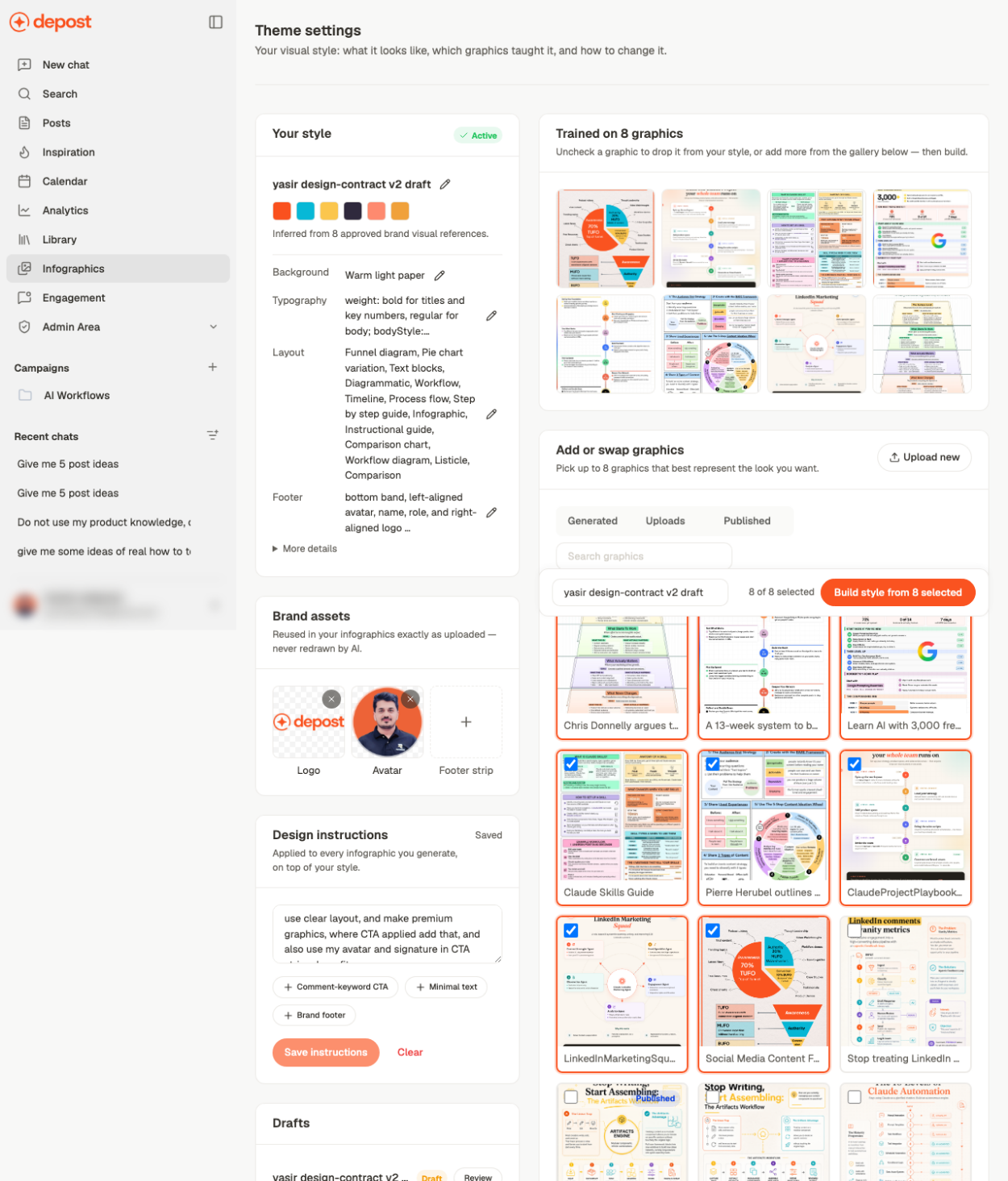
A visual style is what stops generated infographics looking generic. It's built from
graphics you already have, then applied to everything Depost AI renders.
Reach it with **Customize** on the Infographics screen.
 ## Building a style
Depost AI learns from graphics you point it at. Sources are grouped as **Generated**,
**Uploads**, and **Published**, so you can build a style from work you've already put out
rather than describing it from scratch.
Pick the ones that look how you want future visuals to look. A tight set of five consistent
graphics teaches a clearer style than twenty inconsistent ones.
## What you can adjust
| Control | What it sets |
| --------------------- | ------------------------------ |
| **Rename your style** | What it's called |
| **Edit background** | The base the visual sits on |
| **Edit typography** | Typeface and text treatment |
| **Edit layout** | How elements are arranged |
| **Edit footer** | The strip along the bottom |
| **Edit avoids** | Things to keep out — see below |
## Brand marks
* **Brand footer** puts a consistent strip on every visual
* **Upload footer strip**, **Remove logo**, **Remove avatar** control what appears in it
* **Comment-keyword CTA** adds the *"comment KEYWORD to get it"* call to action
* **Minimal text** biases output toward less copy
## Avoids
**Edit avoids** is the underused one. It records what you *don't* want — a color that
clashes with your brand, a layout you dislike, clip-art. Negative instructions are often
more effective than positive ones, because they rule out the defaults you keep having to
correct.
## Instructions
**Save instructions** stores free-text direction applied to every render. Keep it short and
concrete. **Clear** removes it, and **Review** shows what's currently in effect.
Set the style before generating a batch. Restyling afterwards means regenerating
everything, and the credits are already spent.
## Styling one image like another
Attach a design in chat and ask for something in its style, and that reference **stays
attached to the thread**. It isn't a one-off — everything you generate afterwards in that
conversation is styled from it.
The composer shows this as a chip reading **Styling from:** and the design's name, with an
**X** to clear it.
This is the setting most likely to surprise you. A reference attached early keeps steering
generations much later in the same thread, long after you've moved on to a different
subject. If output suddenly looks like something you made an hour ago, check the composer
for that chip.
To stop it, click the X — or start a new chat, since the reference belongs to the thread.
## Related
Where the style gets applied.
Everything you've generated.
Logo and avatar used in the footer.
## Building a style
Depost AI learns from graphics you point it at. Sources are grouped as **Generated**,
**Uploads**, and **Published**, so you can build a style from work you've already put out
rather than describing it from scratch.
Pick the ones that look how you want future visuals to look. A tight set of five consistent
graphics teaches a clearer style than twenty inconsistent ones.
## What you can adjust
| Control | What it sets |
| --------------------- | ------------------------------ |
| **Rename your style** | What it's called |
| **Edit background** | The base the visual sits on |
| **Edit typography** | Typeface and text treatment |
| **Edit layout** | How elements are arranged |
| **Edit footer** | The strip along the bottom |
| **Edit avoids** | Things to keep out — see below |
## Brand marks
* **Brand footer** puts a consistent strip on every visual
* **Upload footer strip**, **Remove logo**, **Remove avatar** control what appears in it
* **Comment-keyword CTA** adds the *"comment KEYWORD to get it"* call to action
* **Minimal text** biases output toward less copy
## Avoids
**Edit avoids** is the underused one. It records what you *don't* want — a color that
clashes with your brand, a layout you dislike, clip-art. Negative instructions are often
more effective than positive ones, because they rule out the defaults you keep having to
correct.
## Instructions
**Save instructions** stores free-text direction applied to every render. Keep it short and
concrete. **Clear** removes it, and **Review** shows what's currently in effect.
Set the style before generating a batch. Restyling afterwards means regenerating
everything, and the credits are already spent.
## Styling one image like another
Attach a design in chat and ask for something in its style, and that reference **stays
attached to the thread**. It isn't a one-off — everything you generate afterwards in that
conversation is styled from it.
The composer shows this as a chip reading **Styling from:** and the design's name, with an
**X** to clear it.
This is the setting most likely to surprise you. A reference attached early keeps steering
generations much later in the same thread, long after you've moved on to a different
subject. If output suddenly looks like something you made an hour ago, check the composer
for that chip.
To stop it, click the X — or start a new chat, since the reference belongs to the thread.
## Related
Where the style gets applied.
Everything you've generated.
Logo and avatar used in the footer.