> ## Documentation Index
> Fetch the complete documentation index at: https://docs.depost.ai/llms.txt
> Use this file to discover all available pages before exploring further.
# Plan and billing
> Your plan, what you've used of it, invoices, and how to change or cancel.
**Billing** is under your account menu, alongside Account and Workspace settings. It answers
three questions: what you're on, what you've used, and what you've paid.
 Prices aren't listed here on purpose — plans change, and a price in a docs page is the
fastest thing on the site to go out of date. The current numbers are always on the pricing
page in the product.
## What's on the screen
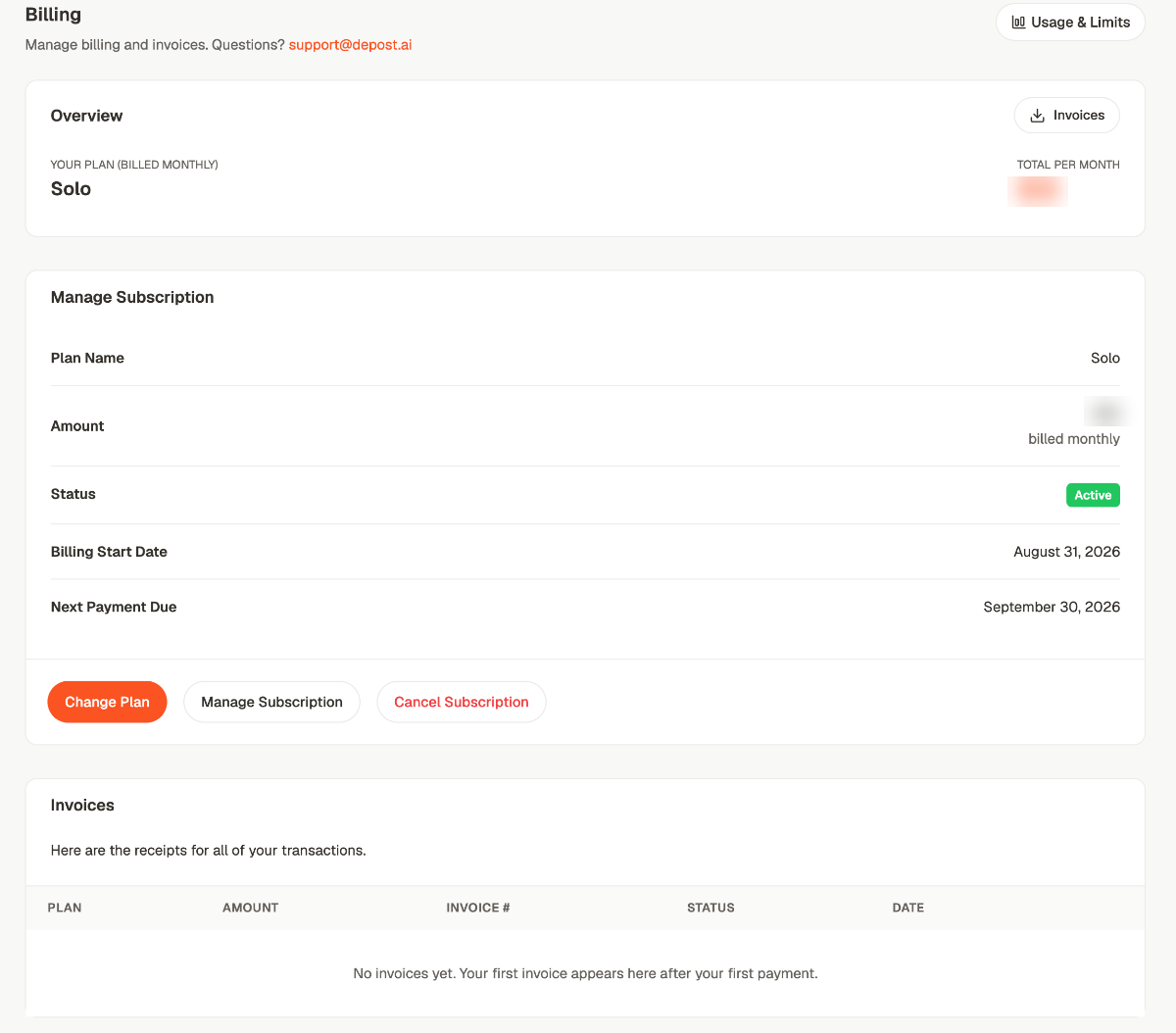
**Overview** shows your plan and what it costs per month, with **Invoices** beside it.
**Manage Subscription** is the detail:
| | |
| - | - |
| **Plan Name** | What you're on |
| **Amount** | What you pay, and how often |
| **Status** | Active, or not |
| **Billing Start Date** | When the current subscription began |
| **Next Payment Due** | The date to know if you're deciding whether to cancel |
**Invoices** lists every transaction with its plan, amount, invoice number, status and date.
It's empty until your first payment, which means during a trial it stays empty — that's
expected, not a fault.
## The three buttons
Move up or down a plan.
Opens the payment provider's own portal, where the card and billing details live.
Ends the subscription. You keep access until the end of the period you've paid for.
**Manage Subscription leaves Depost AI.** Card details and billing addresses are held by the
payment provider, not by us, so that button hands you over to them. If it doesn't open,
it's usually because there's no payment record to manage — a trial that hasn't converted,
or a plan granted manually rather than bought.
## Usage and limits
**Usage & Limits**, top right, is the more useful half of this screen. It's what you've
actually used against what your plan allows.
Prices aren't listed here on purpose — plans change, and a price in a docs page is the
fastest thing on the site to go out of date. The current numbers are always on the pricing
page in the product.
## What's on the screen
**Overview** shows your plan and what it costs per month, with **Invoices** beside it.
**Manage Subscription** is the detail:
| | |
| - | - |
| **Plan Name** | What you're on |
| **Amount** | What you pay, and how often |
| **Status** | Active, or not |
| **Billing Start Date** | When the current subscription began |
| **Next Payment Due** | The date to know if you're deciding whether to cancel |
**Invoices** lists every transaction with its plan, amount, invoice number, status and date.
It's empty until your first payment, which means during a trial it stays empty — that's
expected, not a fault.
## The three buttons
Move up or down a plan.
Opens the payment provider's own portal, where the card and billing details live.
Ends the subscription. You keep access until the end of the period you've paid for.
**Manage Subscription leaves Depost AI.** Card details and billing addresses are held by the
payment provider, not by us, so that button hands you over to them. If it doesn't open,
it's usually because there's no payment record to manage — a trial that hasn't converted,
or a plan granted manually rather than bought.
## Usage and limits
**Usage & Limits**, top right, is the more useful half of this screen. It's what you've
actually used against what your plan allows.
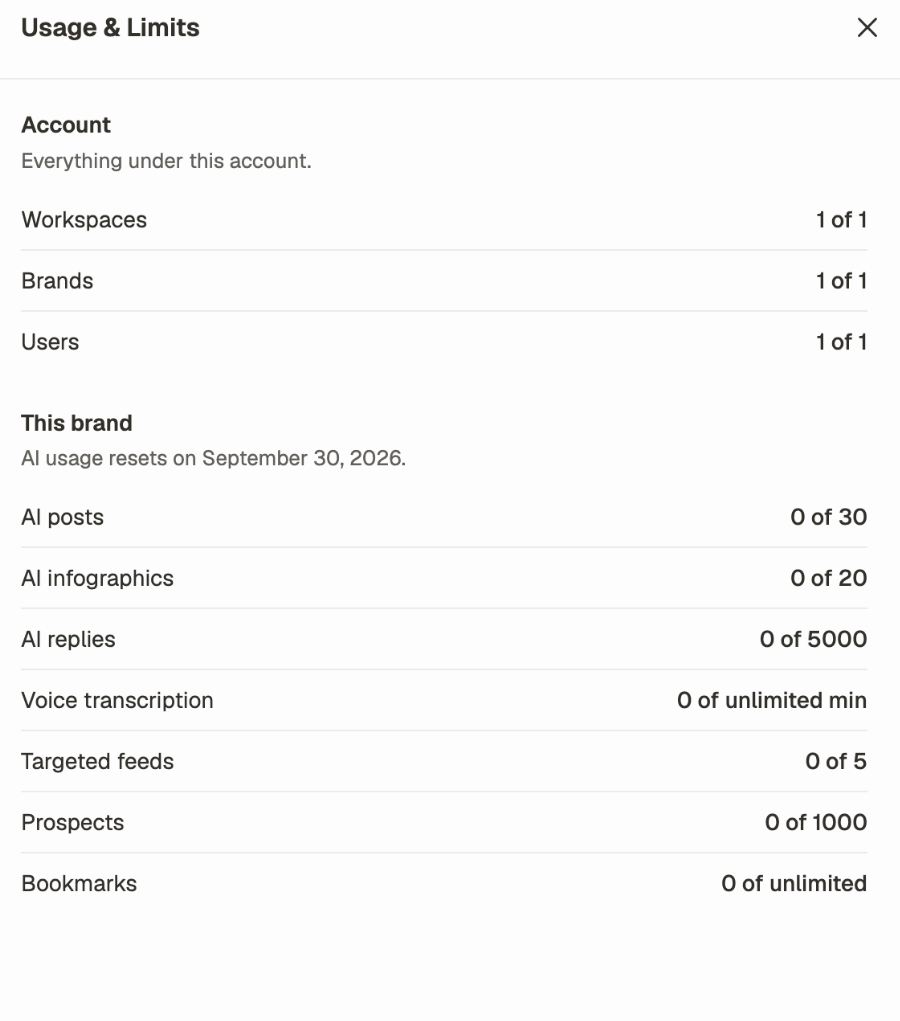 It's split in two, and the split matters:
* **Account** — workspaces, brands and users. These are ceilings on how big the account can
get, and they don't reset.
* **This brand** — AI posts, infographics, replies, voice transcription, targeted feeds,
prospects and bookmarks. These are per brand, and the AI allowances **reset monthly** on
the date shown at the top of that section.
Check this before a heavy week rather than during one. Running out of AI posts on a
Thursday is a worse problem than noticing on Monday that you're close.
## Related
The trial terms, and what happens when it ends.
Which of account, workspace or brand holds what.
What the brand and user counts are limiting.
Profile, security, notifications and referrals.
This documentation is built and hosted on [Mintlify](https://mintlify.com), a developer documentation platform.
It's split in two, and the split matters:
* **Account** — workspaces, brands and users. These are ceilings on how big the account can
get, and they don't reset.
* **This brand** — AI posts, infographics, replies, voice transcription, targeted feeds,
prospects and bookmarks. These are per brand, and the AI allowances **reset monthly** on
the date shown at the top of that section.
Check this before a heavy week rather than during one. Running out of AI posts on a
Thursday is a worse problem than noticing on Monday that you're close.
## Related
The trial terms, and what happens when it ends.
Which of account, workspace or brand holds what.
What the brand and user counts are limiting.
Profile, security, notifications and referrals.
This documentation is built and hosted on [Mintlify](https://mintlify.com), a developer documentation platform.