> ## Documentation Index
> Fetch the complete documentation index at: https://docs.depost.ai/llms.txt
> Use this file to discover all available pages before exploring further.
# Schedule or publish
> Send a post now, set a time, or drop it into a queue slot.
Two buttons sit at the top of the editor: **Schedule** and **Publish**.
## Publish
Sends the post to LinkedIn now. Its status becomes **Published**.
Nothing between you and the feed, so re-read it first — particularly the opening line and
anything with a number in it.
## Schedule
Sets a date and time. The post becomes **Scheduled** and goes out on its own; you don't need
to be around.
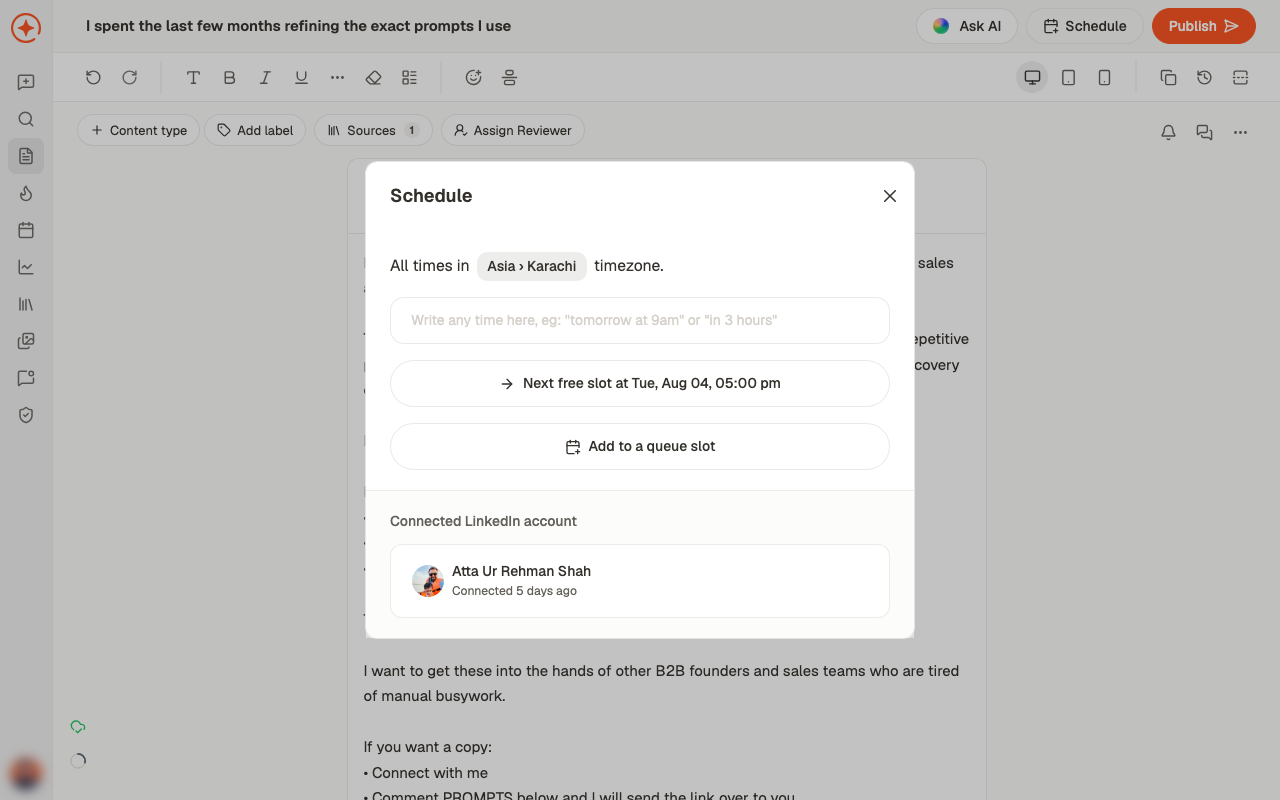 You can also **add it to a queue slot** rather than picking a time by hand. Slots are the
recurring times you've set up on the [calendar](/calendar/overview) — using them keeps a
consistent rhythm without deciding a time for every post.
When timing matters — a launch, an event, something tied to a date.
For everything else. Consistency beats optimisation, and one decision about your
posting windows covers every post after it.
## Before you schedule
A scheduled post publishes through your connected LinkedIn account. If that connection has
expired by the time the slot arrives, the post lands in **Failed** rather than going out.
Failed posts do not retry. Reconnect the account under
[brand settings](/settings/brand), then reschedule. See
[post statuses](/posts/statuses).
## Changing your mind
Scheduled posts can be moved from the [calendar](/calendar/overview) by dragging them to a
new slot, or reopened in the editor.
**Next:** once it's live, find out how it did. See [analytics](/analytics/overview), then
[analyze your content](/chat/analyze) to turn that into the following week's ideas.
## Related
See everything scheduled, and set up your slots.
Scheduled, Published, Failed, and the rest.
Getting sign-off before it goes out.
Where both buttons live.
You can also **add it to a queue slot** rather than picking a time by hand. Slots are the
recurring times you've set up on the [calendar](/calendar/overview) — using them keeps a
consistent rhythm without deciding a time for every post.
When timing matters — a launch, an event, something tied to a date.
For everything else. Consistency beats optimisation, and one decision about your
posting windows covers every post after it.
## Before you schedule
A scheduled post publishes through your connected LinkedIn account. If that connection has
expired by the time the slot arrives, the post lands in **Failed** rather than going out.
Failed posts do not retry. Reconnect the account under
[brand settings](/settings/brand), then reschedule. See
[post statuses](/posts/statuses).
## Changing your mind
Scheduled posts can be moved from the [calendar](/calendar/overview) by dragging them to a
new slot, or reopened in the editor.
**Next:** once it's live, find out how it did. See [analytics](/analytics/overview), then
[analyze your content](/chat/analyze) to turn that into the following week's ideas.
## Related
See everything scheduled, and set up your slots.
Scheduled, Published, Failed, and the rest.
Getting sign-off before it goes out.
Where both buttons live.