> ## Documentation Index
> Fetch the complete documentation index at: https://docs.depost.ai/llms.txt
> Use this file to discover all available pages before exploring further.
# Create a connection
> Make an API key, choose what it can reach, and get the connection URL.
Go to **Settings → MCP**, under **Integrations**.
 ## Creating a key
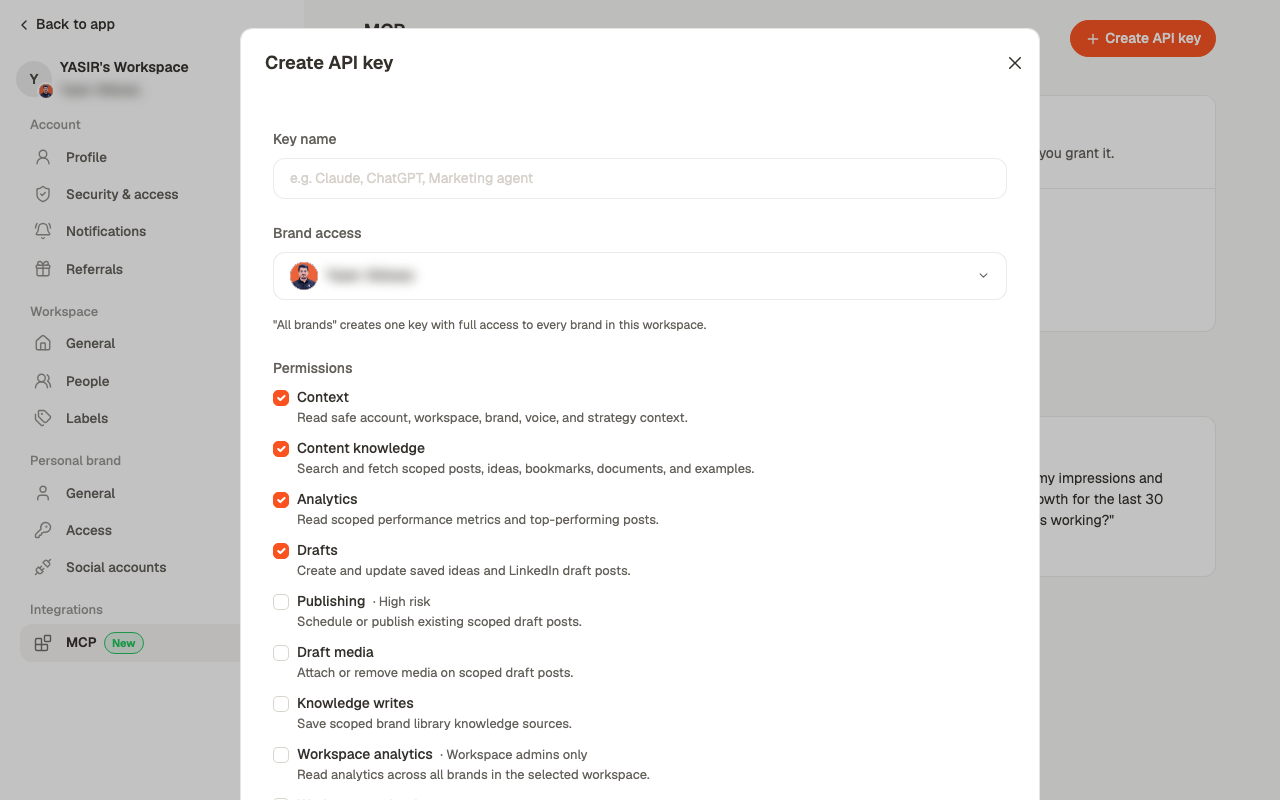
Give it a name you'll recognise later — the client it's for, or the person using it.
Pick a single brand, or **All brands** — which creates one key with full access to every
brand in the workspace.
**Context**, **Content knowledge**, **Analytics** and **Drafts** are on by default.
**Publishing** (marked high risk), **Draft media**, **Knowledge writes** and the two
workspace-wide reads are opt-in.
This is the only time you'll see it.
## Creating a key
Give it a name you'll recognise later — the client it's for, or the person using it.
Pick a single brand, or **All brands** — which creates one key with full access to every
brand in the workspace.
**Context**, **Content knowledge**, **Analytics** and **Drafts** are on by default.
**Publishing** (marked high risk), **Draft media**, **Knowledge writes** and the two
workspace-wide reads are opt-in.
This is the only time you'll see it.
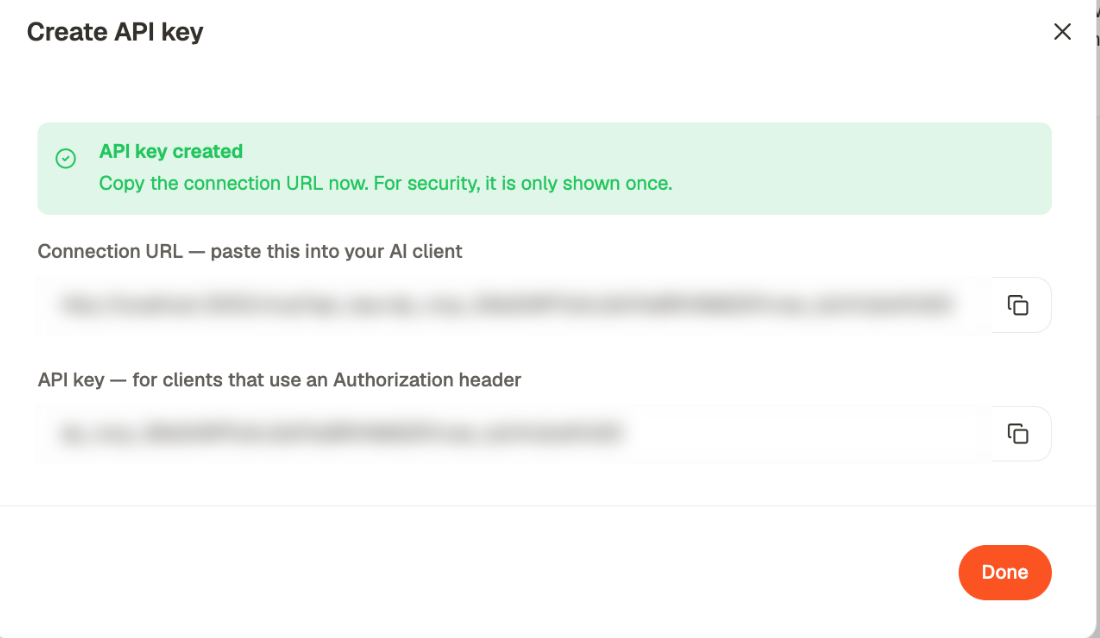 You get two things. The **connection URL** is the one you want — it's what almost every
client asks for, and the key is already inside it. The **API key** on its own is only
for clients that want an Authorization header instead.
**The full connection URL is shown once, at creation.** If you lose it, you can't recover
it — delete the key and create a new one.
## Brand key or workspace key
Scoped to one brand. The client acts on that brand and sees nothing else. Right for most
people, and for anyone working on a single client.
Full access to every brand in the workspace, plus the cross-brand analytics and calendar
tools. Workspace analytics is admins only. For someone reporting across clients.
With a workspace key, anything that *writes* still needs the brand named explicitly — so a
client can't save a draft to the wrong brand by accident.
## Managing keys
You get two things. The **connection URL** is the one you want — it's what almost every
client asks for, and the key is already inside it. The **API key** on its own is only
for clients that want an Authorization header instead.
**The full connection URL is shown once, at creation.** If you lose it, you can't recover
it — delete the key and create a new one.
## Brand key or workspace key
Scoped to one brand. The client acts on that brand and sees nothing else. Right for most
people, and for anyone working on a single client.
Full access to every brand in the workspace, plus the cross-brand analytics and calendar
tools. Workspace analytics is admins only. For someone reporting across clients.
With a workspace key, anything that *writes* still needs the brand named explicitly — so a
client can't save a draft to the wrong brand by accident.
## Managing keys
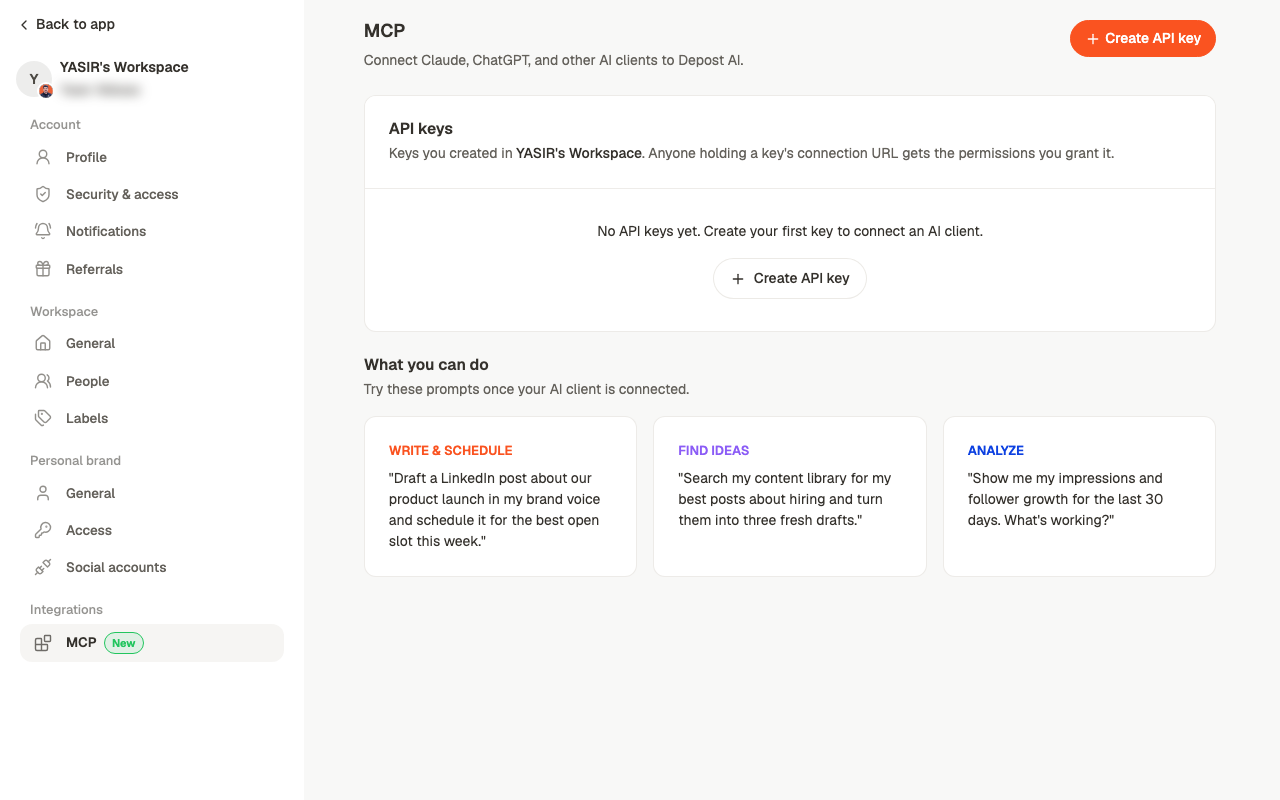 The keys table shows each key's name, access, permissions, when it was last used, and when
it was created. **Last used** is the one to check periodically — a key that's never been
used is either a failed setup or one worth deleting.
**Delete** revokes a key immediately. Any client using it stops working at once, so it's the
right response to a URL you think has leaked.
## Choosing permissions well
Drafting is reversible; publishing to LinkedIn isn't — and the dialog marks it high risk
for that reason. Run without it for a while and add it once you trust the setup.
Separate keys can be revoked separately. A single shared key means revoking it breaks
everyone.
A brand key is a smaller blast radius. Reach for the workspace key when you actually
want reporting across brands.
## Related
What to do with the URL you just copied.
Permissions and capabilities in full.
The keys table shows each key's name, access, permissions, when it was last used, and when
it was created. **Last used** is the one to check periodically — a key that's never been
used is either a failed setup or one worth deleting.
**Delete** revokes a key immediately. Any client using it stops working at once, so it's the
right response to a URL you think has leaked.
## Choosing permissions well
Drafting is reversible; publishing to LinkedIn isn't — and the dialog marks it high risk
for that reason. Run without it for a while and add it once you trust the setup.
Separate keys can be revoked separately. A single shared key means revoking it breaks
everyone.
A brand key is a smaller blast radius. Reach for the workspace key when you actually
want reporting across brands.
## Related
What to do with the URL you just copied.
Permissions and capabilities in full.