> ## Documentation Index
> Fetch the complete documentation index at: https://docs.depost.ai/llms.txt
> Use this file to discover all available pages before exploring further.
# Connect your AI client
> Add the connection to Claude, ChatGPT, or any other MCP client.
You'll need a connection URL — see [create a connection](/mcp/setup) if you don't have one.
The same steps are in the product. Open a key from **Settings → MCP** and you get its
connection URL, the permissions it carries, and a tab per client:
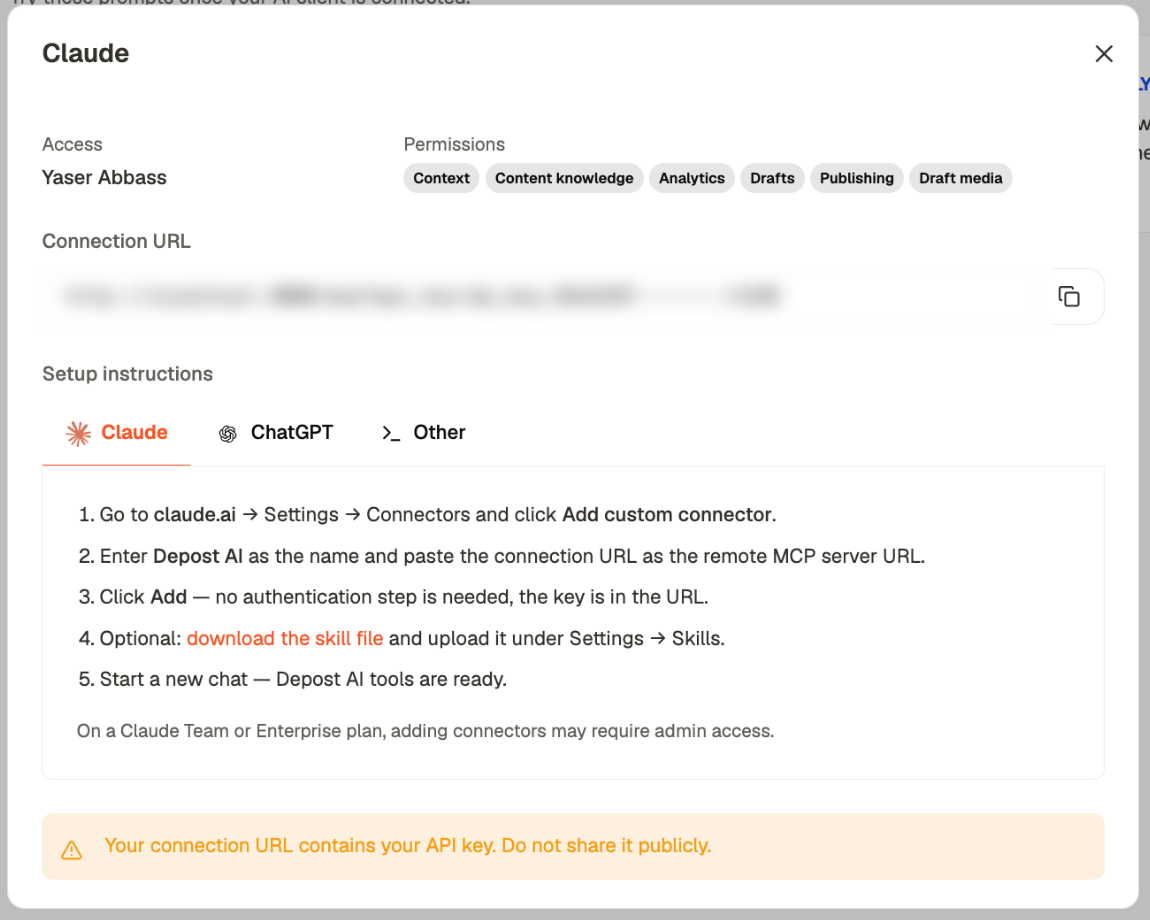 **The connection URL contains your API key.** There's no separate password step, so anyone
holding that URL has whatever permissions you granted it. Treat it like a password: don't
paste it into a shared doc, a ticket, or a screenshot.
Go to **claude.ai → Settings → Connectors** and click **Add custom connector**.
Enter **Depost AI** as the name, and paste the connection URL as the remote MCP
server URL.
There's no authentication step — the key is in the URL.
Download the skill file from **Settings → MCP** in Depost AI and upload it under
**Settings → Skills**. It teaches Claude how to use the tools well.
Depost AI tools are ready.
On a Claude Team or Enterprise plan, adding connectors may need admin access.
In ChatGPT, open **Settings → Connectors** and create a new connector.
Paste the connection URL as the MCP server URL and choose **No authentication**.
Download it from **Settings → MCP** in Depost AI and upload it in ChatGPT's Skills
section.
Any MCP-capable client works. Add the connection URL as a remote MCP server with **no
authentication** — the key is in the URL itself.
## The skill file is worth adding
It's optional and it makes a real difference. Without it, a client has the tools but no
guidance and tends to guess — asking for brand names it could look up, or drafting without
first reading your voice.
With it, the client knows to check your context first, to write in your voice rather than
its own, and to treat publishing as something it confirms with you rather than does.
## Checking it works
Ask something that needs your data:
> *"What are my top performing posts from the last 30 days?"*
A connected client returns your real numbers. If it answers generically or says it has no
access, the connection isn't live.
## When something fails
| What you see | What it means |
| ----------------------------- | ----------------------------------------------------------------------------------------- |
| A permission or **403** error | The key was created without that permission. Create a new key with it enabled |
| A **401** error | The key was deleted, or its owner lost access to the brand. You need a new connection URL |
| Client sees no tools | The connector was added but the chat was started before it — open a new chat |
Permissions can't be edited after creation. Changing what a key can reach means creating a
new one and deleting the old.
## Related
Keys, permissions, and the connection URL.
What it can reach once connected.
Other things that go wrong.
**The connection URL contains your API key.** There's no separate password step, so anyone
holding that URL has whatever permissions you granted it. Treat it like a password: don't
paste it into a shared doc, a ticket, or a screenshot.
Go to **claude.ai → Settings → Connectors** and click **Add custom connector**.
Enter **Depost AI** as the name, and paste the connection URL as the remote MCP
server URL.
There's no authentication step — the key is in the URL.
Download the skill file from **Settings → MCP** in Depost AI and upload it under
**Settings → Skills**. It teaches Claude how to use the tools well.
Depost AI tools are ready.
On a Claude Team or Enterprise plan, adding connectors may need admin access.
In ChatGPT, open **Settings → Connectors** and create a new connector.
Paste the connection URL as the MCP server URL and choose **No authentication**.
Download it from **Settings → MCP** in Depost AI and upload it in ChatGPT's Skills
section.
Any MCP-capable client works. Add the connection URL as a remote MCP server with **no
authentication** — the key is in the URL itself.
## The skill file is worth adding
It's optional and it makes a real difference. Without it, a client has the tools but no
guidance and tends to guess — asking for brand names it could look up, or drafting without
first reading your voice.
With it, the client knows to check your context first, to write in your voice rather than
its own, and to treat publishing as something it confirms with you rather than does.
## Checking it works
Ask something that needs your data:
> *"What are my top performing posts from the last 30 days?"*
A connected client returns your real numbers. If it answers generically or says it has no
access, the connection isn't live.
## When something fails
| What you see | What it means |
| ----------------------------- | ----------------------------------------------------------------------------------------- |
| A permission or **403** error | The key was created without that permission. Create a new key with it enabled |
| A **401** error | The key was deleted, or its owner lost access to the brand. You need a new connection URL |
| Client sees no tools | The connector was added but the chat was started before it — open a new chat |
Permissions can't be edited after creation. Changing what a key can reach means creating a
new one and deleting the old.
## Related
Keys, permissions, and the connection URL.
What it can reach once connected.
Other things that go wrong.