> ## Documentation Index
> Fetch the complete documentation index at: https://docs.depost.ai/llms.txt
> Use this file to discover all available pages before exploring further.
# Content library
> Upload the documents, research, and reference material you want Depost AI writing from.
The library holds your own material — product notes, research, case studies, transcripts.
It's what stops a draft being written from general knowledge when it should be written from
yours.
 ## Adding files
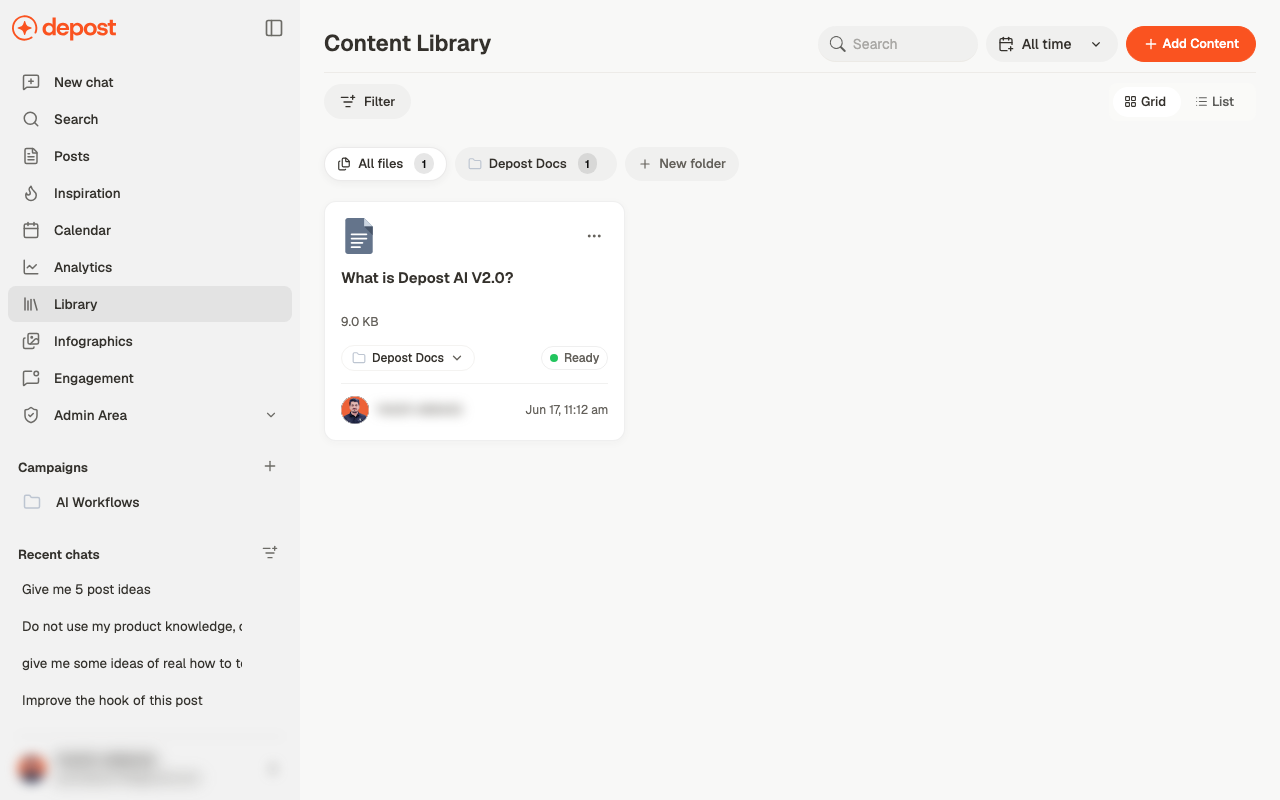
Use **Add Content** in the top right. Uploaded files show a size, the folder they're in, and
a status — **Ready** means it's been processed and can be used in chat.
Give a new file a moment before relying on it. A file that hasn't finished processing won't
contribute to what chat writes.
## Folders
Files start under **All files**. Use **New folder** to group them, then assign a file to a
folder from the dropdown on its card. Each folder chip shows how many files it holds.
Worth doing early. A flat library is fine at five files and unusable at fifty, and moving
things later is slower than filing them as you go.
## Finding things
* **Search** by filename
* **Filter** to narrow the list
* **All time** to restrict by when a file was added
* **Grid** or **List** — list is easier to scan once you have a lot
## Using it in chat
The library is one of the context sources, labelled **Content Library** in the composer's
**Use context from** menu. It's on by default, so anything you upload is available to draw
on without further setup.
Two ways to use it:
Depost AI finds what's relevant across your library. Good when you're not sure which
document matters.
Use **Select from library** in the composer's **+** menu. Precise when you know exactly
which file the request is about.
Upload the things you find yourself explaining repeatedly — your positioning, how the
product actually works, the case study you always cite. Those are what turn a generic
draft into one only you could have written.
## Shared across the workspace
Files uploaded at workspace level are visible to everyone in that workspace. Keep shared
reference material there, and anything specific to one brand with that brand.
## Related
How Content Library is used alongside your other sources.
Point at one specific document for a single request.
Where library material earns its keep.
Reference material from other people, rather than your own.
## Adding files
Use **Add Content** in the top right. Uploaded files show a size, the folder they're in, and
a status — **Ready** means it's been processed and can be used in chat.
Give a new file a moment before relying on it. A file that hasn't finished processing won't
contribute to what chat writes.
## Folders
Files start under **All files**. Use **New folder** to group them, then assign a file to a
folder from the dropdown on its card. Each folder chip shows how many files it holds.
Worth doing early. A flat library is fine at five files and unusable at fifty, and moving
things later is slower than filing them as you go.
## Finding things
* **Search** by filename
* **Filter** to narrow the list
* **All time** to restrict by when a file was added
* **Grid** or **List** — list is easier to scan once you have a lot
## Using it in chat
The library is one of the context sources, labelled **Content Library** in the composer's
**Use context from** menu. It's on by default, so anything you upload is available to draw
on without further setup.
Two ways to use it:
Depost AI finds what's relevant across your library. Good when you're not sure which
document matters.
Use **Select from library** in the composer's **+** menu. Precise when you know exactly
which file the request is about.
Upload the things you find yourself explaining repeatedly — your positioning, how the
product actually works, the case study you always cite. Those are what turn a generic
draft into one only you could have written.
## Shared across the workspace
Files uploaded at workspace level are visible to everyone in that workspace. Keep shared
reference material there, and anything specific to one brand with that brand.
## Related
How Content Library is used alongside your other sources.
Point at one specific document for a single request.
Where library material earns its keep.
Reference material from other people, rather than your own.