> ## Documentation Index
> Fetch the complete documentation index at: https://docs.depost.ai/llms.txt
> Use this file to discover all available pages before exploring further.
# Lead lists and prospects
> Group the people you're tracking, and add them as you come across them on LinkedIn.
Lists are how prospects stay manageable. Each appears as a chip across the top of
[Engagement](/engagement/overview) with a count, and **All prospects** holds everyone.
## Creating a list
Click **New list** at the end of the chips, name it, and it appears alongside the others.
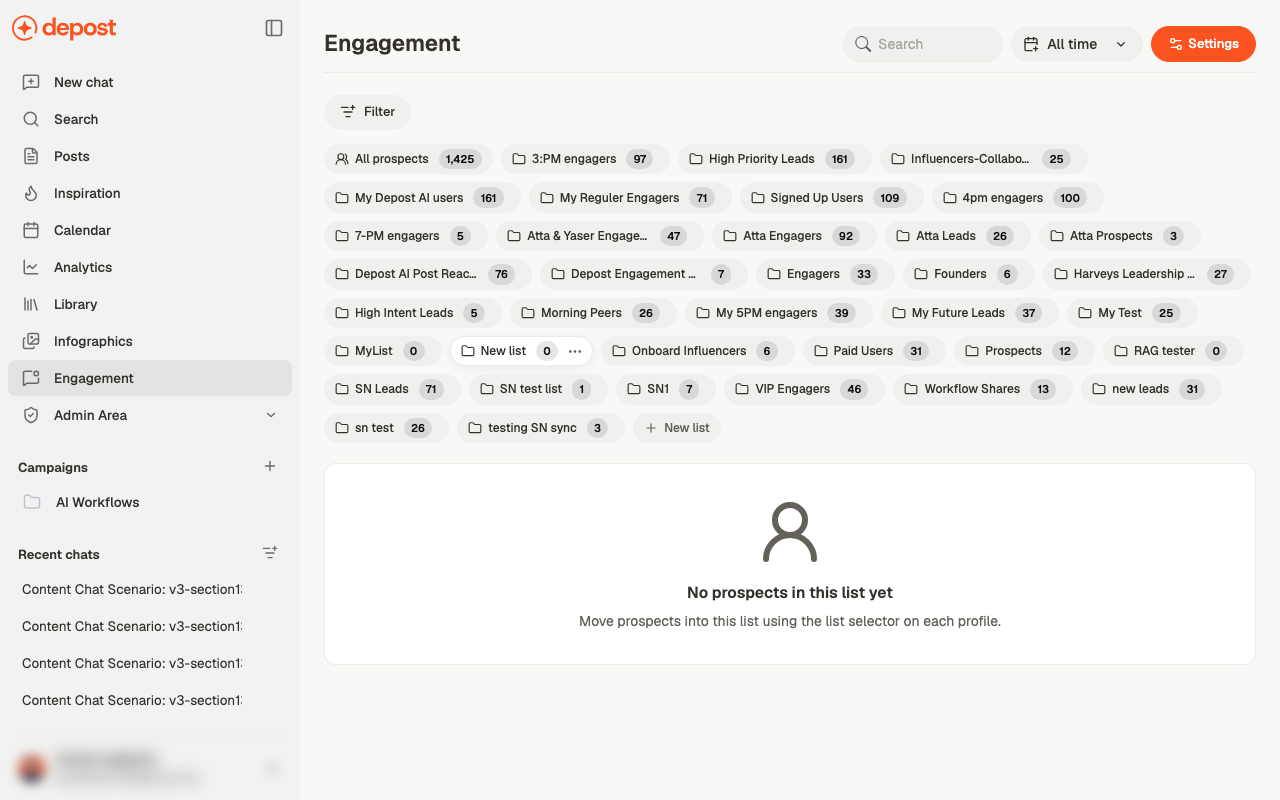 A new list starts empty, and the screen tells you how to fill it: *move prospects into this
list using the list selector on each profile.*
Name a list after the reason someone is in it — *engaged with the launch post*, *warm from
a call*, *fintech founders*. A list called "leads" tells you nothing in a month, and
you'll end up rebuilding it.
## Adding people
Prospects come from LinkedIn, not from a form here. While you're reading — a post, a comment
thread, someone's profile — the browser extension lets you add that person to a list.
Not Depost Sync — that one only reads your own stats. Pick the workspace and brand the
prospects should land in. See [the extensions](/engagement/extension).
Their profile, or their comment on a post.
Use the extension to save them. They appear in Engagement against the brand you
selected.
Check which brand the extension is set to before a run of adding people. Prospects saved
against the wrong brand have to be moved one at a time.
## Working the lists from LinkedIn
Your lists don't stay in the dashboard. The extension carries them onto LinkedIn, so the
list you built is there while you're reading:
A new list starts empty, and the screen tells you how to fill it: *move prospects into this
list using the list selector on each profile.*
Name a list after the reason someone is in it — *engaged with the launch post*, *warm from
a call*, *fintech founders*. A list called "leads" tells you nothing in a month, and
you'll end up rebuilding it.
## Adding people
Prospects come from LinkedIn, not from a form here. While you're reading — a post, a comment
thread, someone's profile — the browser extension lets you add that person to a list.
Not Depost Sync — that one only reads your own stats. Pick the workspace and brand the
prospects should land in. See [the extensions](/engagement/extension).
Their profile, or their comment on a post.
Use the extension to save them. They appear in Engagement against the brand you
selected.
Check which brand the extension is set to before a run of adding people. Prospects saved
against the wrong brand have to be moved one at a time.
## Working the lists from LinkedIn
Your lists don't stay in the dashboard. The extension carries them onto LinkedIn, so the
list you built is there while you're reading:
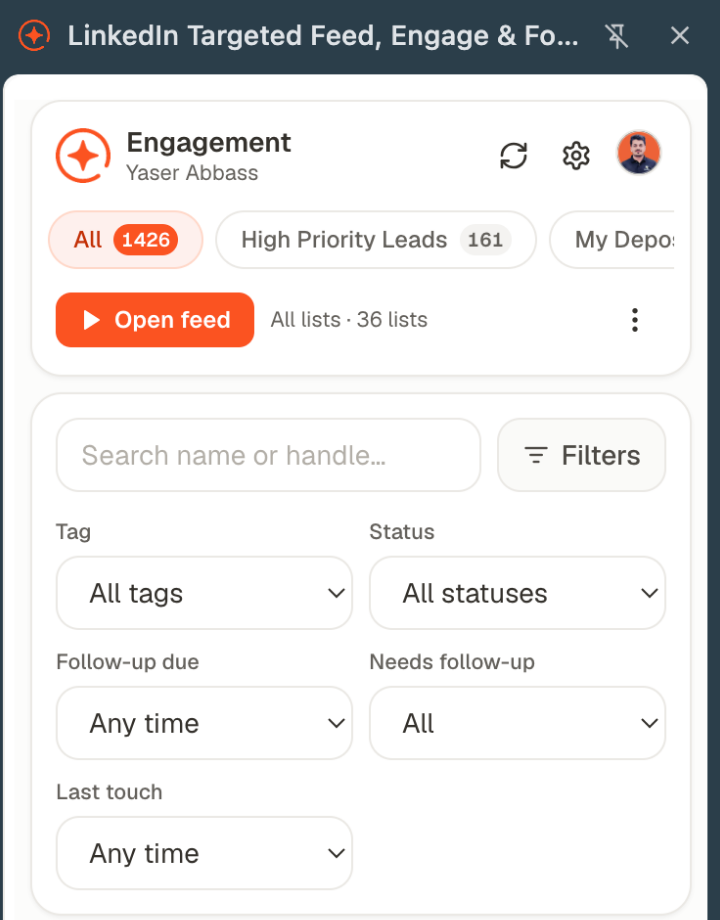 Each list is a chip with its count. **Open feed** is the one worth knowing about: instead of
scrolling LinkedIn and hoping the right people appear, it builds a feed **from a list**, so
you see what those specific people posted.
The filters underneath are about follow-through rather than discovery — **status**,
**follow-up due**, **needs follow-up**, **last touch**. They answer "who have I left
hanging", which is the question that actually decides whether any of this works.
Sort by **last touch** once a week and work down. Relationships don't fail because the
first comment was weak. They fail because there was never a second one.
## Moving people between lists
Every prospect row has a **list selector** and a **status**. Both are dropdowns on the row,
so re-filing someone takes one click without opening a detail screen.
**Prospect actions** on the row covers the rest. **Lead list actions** on a list chip covers
renaming and removing the list itself.
## Statuses
Each prospect carries a status — **New** on arrival, moving through whatever stages you use,
with **Won** and **Warm** among them. Status and list are independent: the list is *who they
are*, the status is *where the conversation has got to*.
## Finding people
* **Search** by name
* **Filter** to narrow by list and status
* **All time** to restrict by when they were added
## Related
The screen these lists live on.
What gets said once someone is on a list.
Where prospects are actually added.
This documentation is built and hosted on [Mintlify](https://mintlify.com), a developer documentation platform.
Each list is a chip with its count. **Open feed** is the one worth knowing about: instead of
scrolling LinkedIn and hoping the right people appear, it builds a feed **from a list**, so
you see what those specific people posted.
The filters underneath are about follow-through rather than discovery — **status**,
**follow-up due**, **needs follow-up**, **last touch**. They answer "who have I left
hanging", which is the question that actually decides whether any of this works.
Sort by **last touch** once a week and work down. Relationships don't fail because the
first comment was weak. They fail because there was never a second one.
## Moving people between lists
Every prospect row has a **list selector** and a **status**. Both are dropdowns on the row,
so re-filing someone takes one click without opening a detail screen.
**Prospect actions** on the row covers the rest. **Lead list actions** on a list chip covers
renaming and removing the list itself.
## Statuses
Each prospect carries a status — **New** on arrival, moving through whatever stages you use,
with **Won** and **Warm** among them. Status and list are independent: the list is *who they
are*, the status is *where the conversation has got to*.
## Finding people
* **Search** by name
* **Filter** to narrow by list and status
* **All time** to restrict by when they were added
## Related
The screen these lists live on.
What gets said once someone is on a list.
Where prospects are actually added.
This documentation is built and hosted on [Mintlify](https://mintlify.com), a developer documentation platform.