> ## Documentation Index
> Fetch the complete documentation index at: https://docs.depost.ai/llms.txt
> Use this file to discover all available pages before exploring further.
# How chat works
> Chat is where most work in Depost AI starts — ideas, drafts, analysis, plans, and visuals all come out of the same conversation.
Chat is the main surface in Depost AI. Rather than a set of separate tools, you ask for what
you want and Depost AI works out what to do — analyze your posts, generate ideas, write a
draft, build a plan, or make a visual.
It's built for going back and forth. You shape an idea, refine the angle, and keep related
work together, instead of getting one output and starting over.
## Starting a chat
Click **New chat** in the sidebar. You'll land on **What are we creating today?** with a
message box and a row of starters.
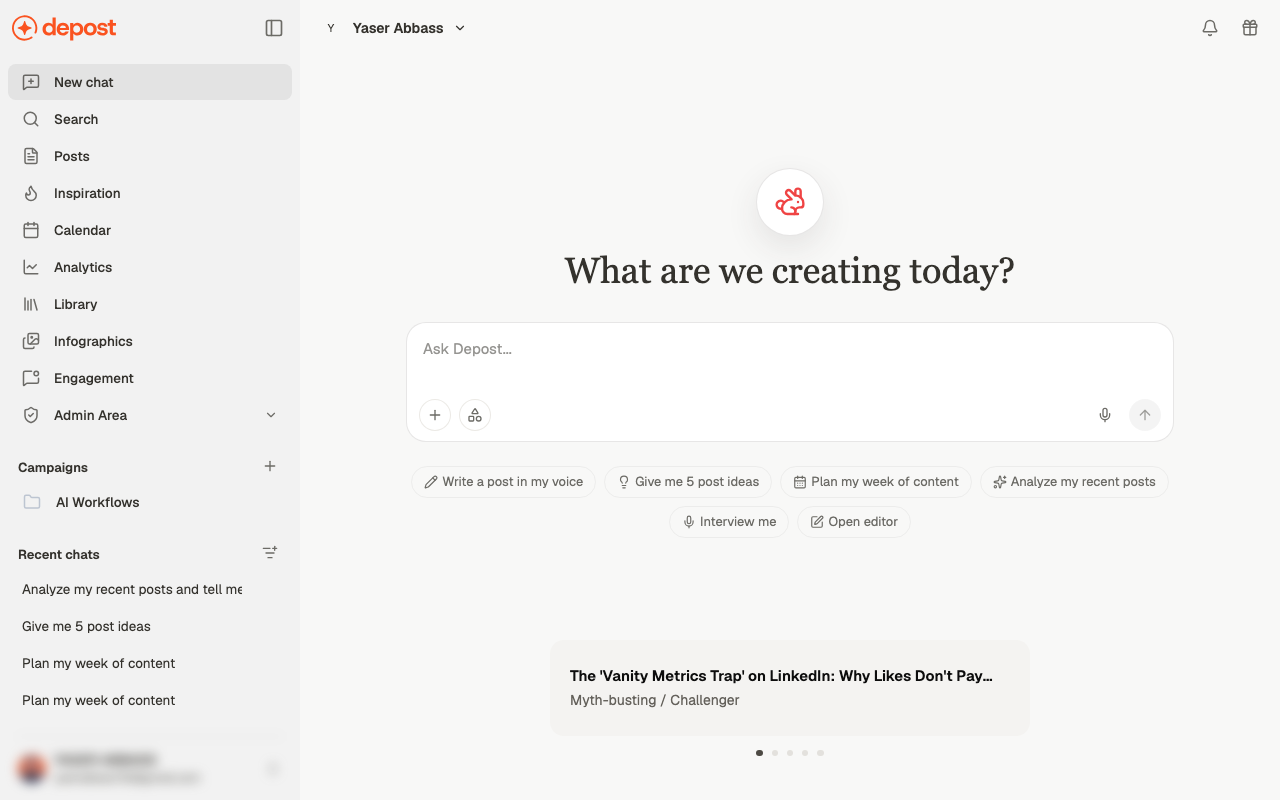 Best used with a topic added — on its own it offers ideas to choose from rather than a
draft. See [Create a post](/chat/create-post).
Ideas grounded in your brand and history, not generic prompts.
A weekly plan you can turn into scheduled posts.
A read on your own content before you write anything new.
Two more sit alongside them:
**Interview me** is worth knowing about separately. Instead of you describing what you
want, Depost AI asks you questions and builds the idea from your answers. It's the best
starter when you know you should post but don't know what about.
**Open editor** isn't a prompt at all — it skips chat and takes you straight to a blank
editor. Use it when you already know what you're writing.
The starters are shortcuts, not limits. Typing your own request in the message box works
the same way.
## This week's ideas
Below the composer, a card cycles through five post ideas prepared for you — generated when
your brand was first analyzed, and refreshed weekly. Each shows a title and the angle it
takes, such as *Proof / Case Study*.
Best used with a topic added — on its own it offers ideas to choose from rather than a
draft. See [Create a post](/chat/create-post).
Ideas grounded in your brand and history, not generic prompts.
A weekly plan you can turn into scheduled posts.
A read on your own content before you write anything new.
Two more sit alongside them:
**Interview me** is worth knowing about separately. Instead of you describing what you
want, Depost AI asks you questions and builds the idea from your answers. It's the best
starter when you know you should post but don't know what about.
**Open editor** isn't a prompt at all — it skips chat and takes you straight to a blank
editor. Use it when you already know what you're writing.
The starters are shortcuts, not limits. Typing your own request in the message box works
the same way.
## This week's ideas
Below the composer, a card cycles through five post ideas prepared for you — generated when
your brand was first analyzed, and refreshed weekly. Each shows a title and the angle it
takes, such as *Proof / Case Study*.
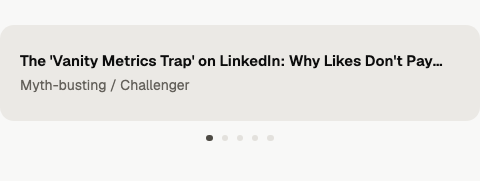 * **Hover** to pause the rotation while you read
* **Click a card, or a dot**, to stop it cycling and jump to that idea
* Clicking a card **fills the message box** with it, so you can edit the wording before
sending rather than committing to it as written
These are the cheapest ideas in the product to act on — they're already waiting when you
open a new chat. If none of the five appeal, ask for
[your own](/chat/ideas) instead.
## What you can ask for
You don't need to learn a menu. Ask in your own words and Depost AI picks the right action.
Broadly, it can:
Audit your profile, review recent or best-performing posts, find content gaps, study
your voice patterns, or explain what your performance data means. See
[Analyze your content](/chat/analyze), or [Find what's trending](/chat/trends) for the
outward-facing half.
Post ideas, fresh or contrarian angles, and concepts for lead magnets, carousels, and
infographics. See [Get ideas and angles](/chat/ideas).
Full posts, hooks, CTAs, pinned comments, post series, video scripts, lead magnet
outlines, carousel and infographic content.
Turn a post into a carousel, an infographic, a lead magnet, or a video script — and
back the other way. One idea can become a pack of several formats at once.
Rewrite, sharpen the hook, strengthen the CTA, improve readability or structure,
humanize, shorten, add proof, apply your brand voice, change tone, or make it less
salesy.
Weekly and monthly plans, launch campaigns, lead magnet promotion — plus reviewing and
updating the strategy profile that shapes everything else.
## From chat to a post
When a draft is close, move it into the editor rather than re-prompting the chat
repeatedly. The editor is where you format, add media, get review, and schedule.
A chat can also stay attached to a post. When it is, a set of one-click actions appears
above the message box — rewrite, sharpen, improve the hook, and so on — so you can keep
refining without typing the instruction each time.
Give the outcome, not just the topic. "Write about hiring" produces something generic.
"Write a post for early-stage founders about why our first three hires failed, ending
with a question" produces something usable.
## Related
Choose which of your material Depost AI draws on — and see what it always uses.
Bring files, library documents, and spoken notes into a chat.
Favorites, campaigns, archiving, and finding old threads.
Take a draft through editing, review, and publishing.
* **Hover** to pause the rotation while you read
* **Click a card, or a dot**, to stop it cycling and jump to that idea
* Clicking a card **fills the message box** with it, so you can edit the wording before
sending rather than committing to it as written
These are the cheapest ideas in the product to act on — they're already waiting when you
open a new chat. If none of the five appeal, ask for
[your own](/chat/ideas) instead.
## What you can ask for
You don't need to learn a menu. Ask in your own words and Depost AI picks the right action.
Broadly, it can:
Audit your profile, review recent or best-performing posts, find content gaps, study
your voice patterns, or explain what your performance data means. See
[Analyze your content](/chat/analyze), or [Find what's trending](/chat/trends) for the
outward-facing half.
Post ideas, fresh or contrarian angles, and concepts for lead magnets, carousels, and
infographics. See [Get ideas and angles](/chat/ideas).
Full posts, hooks, CTAs, pinned comments, post series, video scripts, lead magnet
outlines, carousel and infographic content.
Turn a post into a carousel, an infographic, a lead magnet, or a video script — and
back the other way. One idea can become a pack of several formats at once.
Rewrite, sharpen the hook, strengthen the CTA, improve readability or structure,
humanize, shorten, add proof, apply your brand voice, change tone, or make it less
salesy.
Weekly and monthly plans, launch campaigns, lead magnet promotion — plus reviewing and
updating the strategy profile that shapes everything else.
## From chat to a post
When a draft is close, move it into the editor rather than re-prompting the chat
repeatedly. The editor is where you format, add media, get review, and schedule.
A chat can also stay attached to a post. When it is, a set of one-click actions appears
above the message box — rewrite, sharpen, improve the hook, and so on — so you can keep
refining without typing the instruction each time.
Give the outcome, not just the topic. "Write about hiring" produces something generic.
"Write a post for early-stage founders about why our first three hires failed, ending
with a question" produces something usable.
## Related
Choose which of your material Depost AI draws on — and see what it always uses.
Bring files, library documents, and spoken notes into a chat.
Favorites, campaigns, archiving, and finding old threads.
Take a draft through editing, review, and publishing.