> ## Documentation Index
> Fetch the complete documentation index at: https://docs.depost.ai/llms.txt
> Use this file to discover all available pages before exploring further.
# Organize chats and campaigns
> Keep threads findable with favorites, campaigns, and archiving.
Chats accumulate fast. A few habits keep the useful ones reachable.
## Where chats live
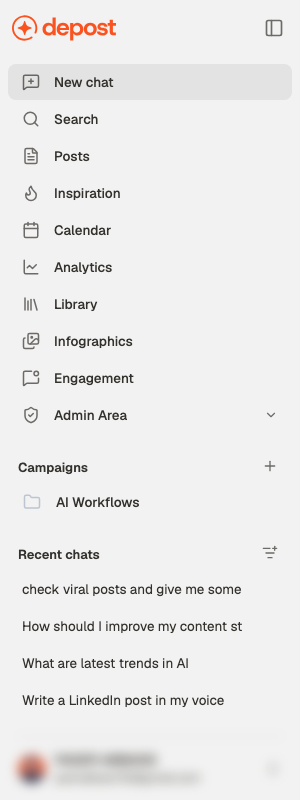
The sidebar shows **Recent chats** — what you've worked on most recently. The control
beside that heading, **Filter chats**, switches what the list shows:
Everything. The default.
Threads you've starred — the handful worth returning to.
Out of the way, but not deleted.
Above the list sits **Campaigns**, and above that the main navigation.
 ## Search across everything
**Search** in the sidebar, or **⌘K** anywhere, opens one box that looks in three places at
once: your **chats**, your **posts**, and your **campaigns**.
## Search across everything
**Search** in the sidebar, or **⌘K** anywhere, opens one box that looks in three places at
once: your **chats**, your **posts**, and your **campaigns**.
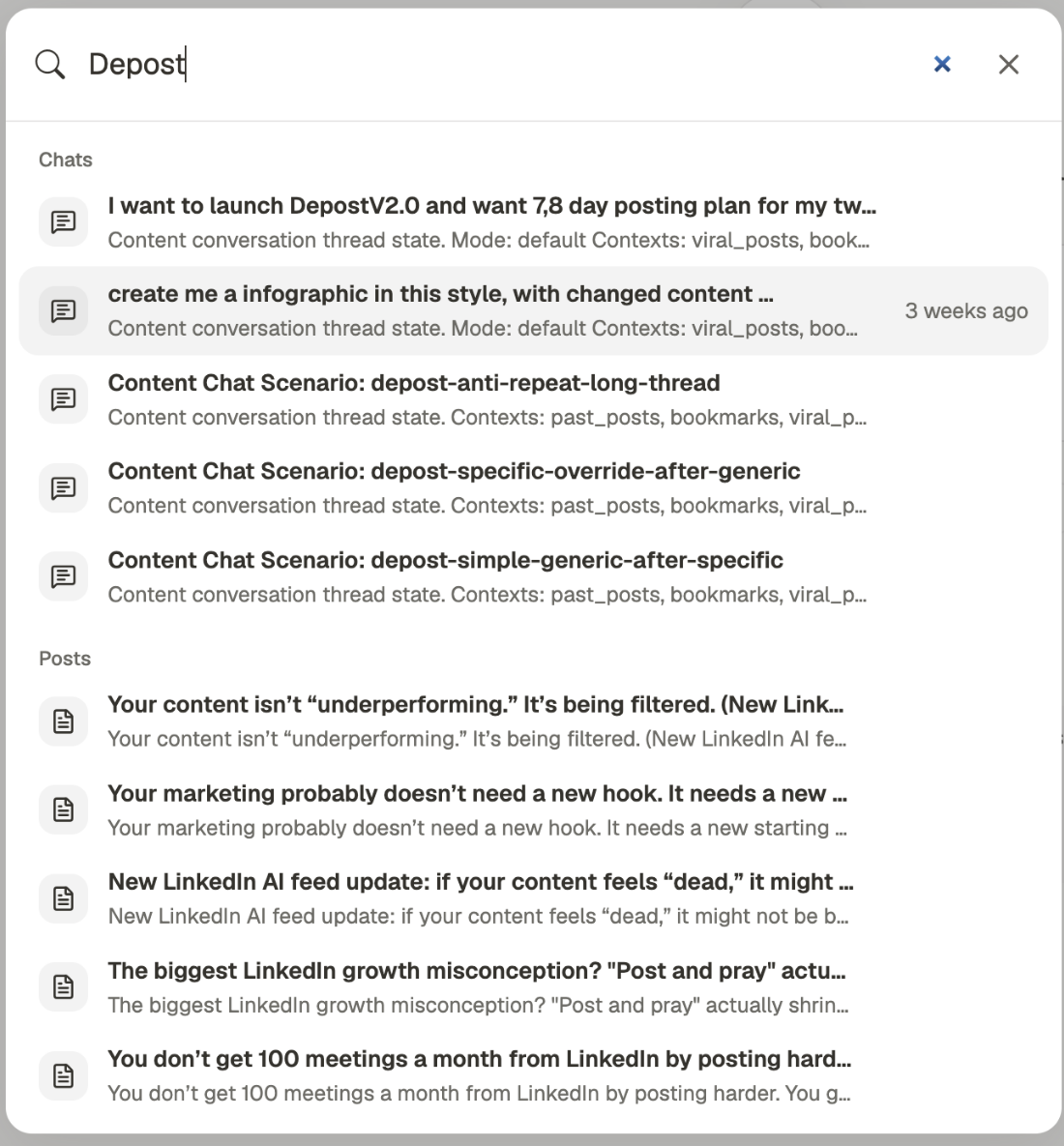 Results come back grouped by type, each with a line of context underneath so you can tell
two similar threads apart without opening either.
Open it with nothing typed and you get your **recent** chats, posts and campaigns instead,
plus a shortcut to start a new chat. That makes it a faster way back to this morning's work
than scrolling the sidebar.
This is the fastest fix for a sidebar full of similar names. You don't have to remember
whether something was a chat or a post — search finds both, so ⌘K and a couple of words
beats hunting for it.
## Rename a thread
Chats get an automatic title. Open the chat's actions menu and rename it. Worth doing for
anything you'll come back to — automatic titles are fine for finding a thread this week
and useless for finding it next month.
## Campaigns
A campaign is a folder for related chats. Use one when a piece of work spans several
conversations: a product launch, a recurring content theme, or a specific client.
Use **New campaign** — the **+** beside the **Campaigns** heading in the sidebar.
Open a chat's actions menu and choose **Move to campaign**. A chat belongs to one
campaign at a time.
Opening a campaign shows only its chats, so a launch stays separate from everything else.
To take a chat back out, use **Remove from campaign**. Deleting a campaign asks whether to
delete the chats inside it too — you can keep them and just remove the grouping.
Deleting a campaign with its chats removes those conversations. If you only wanted to
clear the grouping, delete the campaign without its chats, or archive them instead.
## Archiving
Archive a chat when it's finished but you don't want it gone. Archived chats stay
searchable and can be brought back with **Restore**. An archived chat is read-only until
you restore it — you'll see **Chat is archived** in place of the message box.
Archiving is the right default for finished work. Deleting is for things you're certain
you'll never want.
## Keeping it manageable
Not the ones with good posts — those are in Posts already. Favorite the threads where
you worked out positioning, an angle that keeps paying off, or a prompt that works.
Continuing an existing thread keeps its context. Starting a new one throws it away and
you re-explain everything.
Not before. Campaigns created in advance stay empty; campaigns created when the work
already exists get used.
## Related
Starting a chat and what you can ask for.
Choose which of your material Depost AI draws on.
Results come back grouped by type, each with a line of context underneath so you can tell
two similar threads apart without opening either.
Open it with nothing typed and you get your **recent** chats, posts and campaigns instead,
plus a shortcut to start a new chat. That makes it a faster way back to this morning's work
than scrolling the sidebar.
This is the fastest fix for a sidebar full of similar names. You don't have to remember
whether something was a chat or a post — search finds both, so ⌘K and a couple of words
beats hunting for it.
## Rename a thread
Chats get an automatic title. Open the chat's actions menu and rename it. Worth doing for
anything you'll come back to — automatic titles are fine for finding a thread this week
and useless for finding it next month.
## Campaigns
A campaign is a folder for related chats. Use one when a piece of work spans several
conversations: a product launch, a recurring content theme, or a specific client.
Use **New campaign** — the **+** beside the **Campaigns** heading in the sidebar.
Open a chat's actions menu and choose **Move to campaign**. A chat belongs to one
campaign at a time.
Opening a campaign shows only its chats, so a launch stays separate from everything else.
To take a chat back out, use **Remove from campaign**. Deleting a campaign asks whether to
delete the chats inside it too — you can keep them and just remove the grouping.
Deleting a campaign with its chats removes those conversations. If you only wanted to
clear the grouping, delete the campaign without its chats, or archive them instead.
## Archiving
Archive a chat when it's finished but you don't want it gone. Archived chats stay
searchable and can be brought back with **Restore**. An archived chat is read-only until
you restore it — you'll see **Chat is archived** in place of the message box.
Archiving is the right default for finished work. Deleting is for things you're certain
you'll never want.
## Keeping it manageable
Not the ones with good posts — those are in Posts already. Favorite the threads where
you worked out positioning, an angle that keeps paying off, or a prompt that works.
Continuing an existing thread keeps its context. Starting a new one throws it away and
you re-explain everything.
Not before. Campaigns created in advance stay empty; campaigns created when the work
already exists get used.
## Related
Starting a chat and what you can ask for.
Choose which of your material Depost AI draws on.