> ## Documentation Index
> Fetch the complete documentation index at: https://docs.depost.ai/llms.txt
> Use this file to discover all available pages before exploring further.
# Give chat the right context
> Depost AI always writes from your brand, voice, and performance. Five more sources are yours to control — and Thinking or Fast decides whether it reads them.
The quality of what chat gives back depends on what it's allowed to look at. Three things
are always used. Five more are switched on by default and yours to turn off.
## Always used — you don't need to ask
Three things are applied to every request automatically:
Positioning, offer, audience, product context, and proof from your brand profile.
Your brand voice and writing style.
Which hooks, topics, formats, and CTAs have actually worked for you.
You don't have to say "use my brand voice" — it's already on. Asking for it does no harm,
but it isn't what makes the difference. If output doesn't sound like you, the fix is in
[your brand voice settings](/chat/brand-voice), not in the prompt.
## The five you control
Open **Use context from** below the message box — the icon to the right of **+**. You'll
see five toggles:
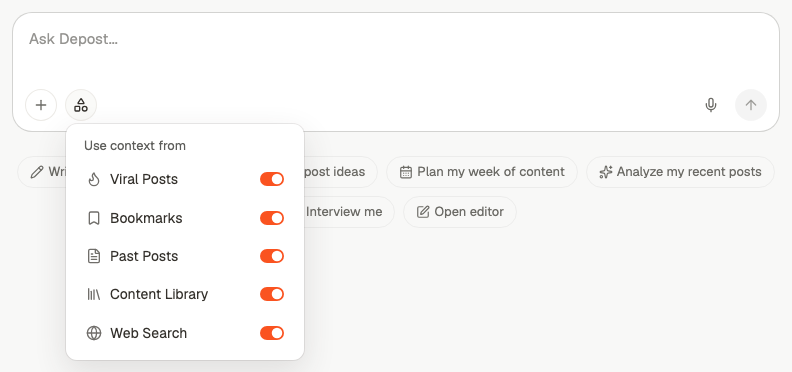 | Source | What it brings in |
| ------------------- | ------------------------------------------------------------------------------------- |
| **Viral Posts** | High-performing posts from your niche, broken down by hook, format and call to action |
| **Bookmarks** | Examples and reference posts you've saved |
| **Past Posts** | What you've already published |
| **Content Library** | Your own documents — product notes, research, case studies |
| **Web Search** | Current facts: market signals, pricing, trends, competitors |
**All five start switched on.** You're not opting in — you're narrowing down. If output
is drifting somewhere you didn't intend, the fix is usually turning something *off*.
## Thinking or Fast
Next to the source picker is an **Effort** control — a brain icon for **Thinking**, a bolt
for **Fast**. It decides whether Depost AI searches those sources at all.
| Source | What it brings in |
| ------------------- | ------------------------------------------------------------------------------------- |
| **Viral Posts** | High-performing posts from your niche, broken down by hook, format and call to action |
| **Bookmarks** | Examples and reference posts you've saved |
| **Past Posts** | What you've already published |
| **Content Library** | Your own documents — product notes, research, case studies |
| **Web Search** | Current facts: market signals, pricing, trends, competitors |
**All five start switched on.** You're not opting in — you're narrowing down. If output
is drifting somewhere you didn't intend, the fix is usually turning something *off*.
## Thinking or Fast
Next to the source picker is an **Effort** control — a brain icon for **Thinking**, a bolt
for **Fast**. It decides whether Depost AI searches those sources at all.
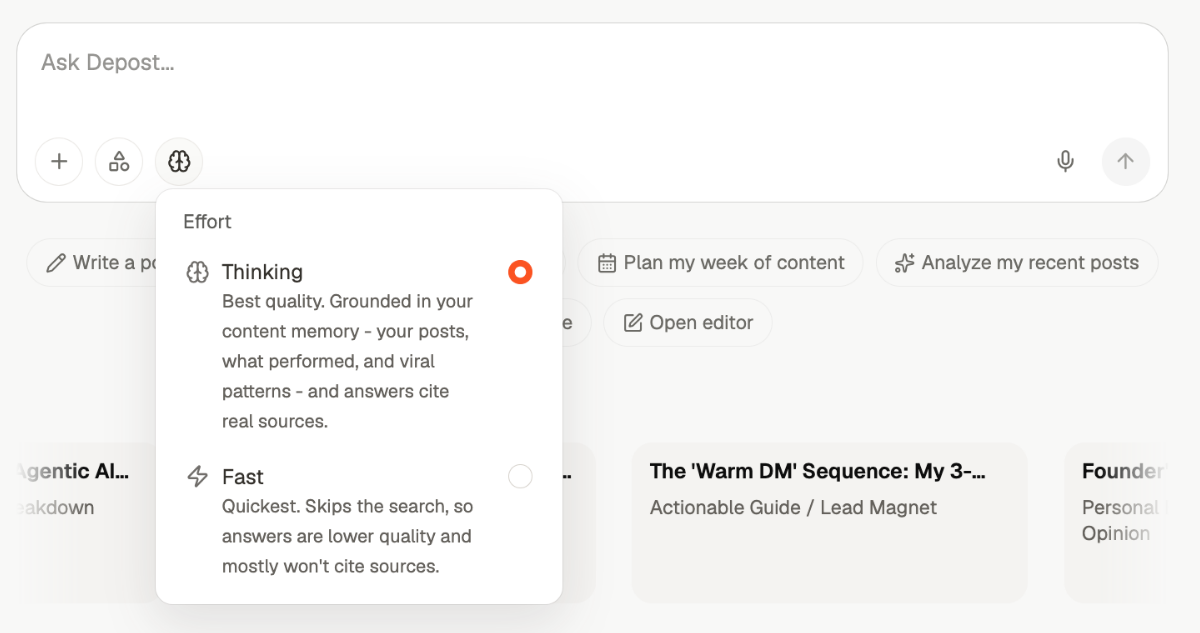 | Mode | What you get |
| ------------ | ------------------------------------------------------------------------------------------------------------------------------- |
| **Thinking** | Best quality. Grounded in your content memory — your posts, what performed, and viral patterns — and answers cite real sources. |
| **Fast** | Quickest. Skips the search, so answers are lower quality and mostly won't cite sources. |
**Thinking is the default**, and the composer icon tells you which one is on without
opening the menu. The control is on the new-chat screen too, so you can set it before your
first message.
The important part is that Fast doesn't read *less* — it reads **nothing**. Every source
you picked above is ignored for that turn, and the answer comes from general knowledge
instead of your material.
A Fast answer can still read like a confident, well-sourced one. It isn't. If it matters
whether a claim came from your own posts or performance, stay on Thinking — or check the
Sources chip before you use it.
Fast buys seconds, not minutes. It's worth it for throwaway questions and rephrasing, and
rarely worth it for anything you're going to publish.
## Narrowing down
More context is not automatically better. Each source pulls the output in its direction,
so turn off the ones that don't match what you're asking for.
Keep **Past Posts** — that's the material being analyzed. Turn off **Viral Posts**
unless you want the analysis to compare you against what's working elsewhere.
Leave most of it on. **Past Posts** stops it repeating you, **Bookmarks** and **Viral
Posts** add range. Keep **Web Search** on if you want ideas tied to something happening
now, off if you want evergreen ones.
**Content Library** is the one that matters — it's what stops the draft being generic.
Turning off **Viral Posts** here often helps, since it stops the draft drifting toward
a format that isn't yours.
Turn most of them off. The draft is the input, and your voice and performance are
applied regardless. Extra sources tend to pull the rewrite away from what you wrote.
Keep **Web Search** on. Without it, Depost AI works from your material and its own
knowledge, so recent numbers, prices, and events won't be reliable.
## Checking what it actually used
When Depost AI has grounded an answer, a **Sources** chip appears with it, carrying a count.
Open it and you get the real material it read, grouped by where each piece came from:
| | |
| --------------- | ------------------------------------- |
| **Viral Posts** | High-performing posts from your niche |
| **Your Posts** | Things you've published |
| **Bookmarks** | What you've saved |
| **Library** | Your own uploaded material |
| **Web** | Pages found by web search |
| Mode | What you get |
| ------------ | ------------------------------------------------------------------------------------------------------------------------------- |
| **Thinking** | Best quality. Grounded in your content memory — your posts, what performed, and viral patterns — and answers cite real sources. |
| **Fast** | Quickest. Skips the search, so answers are lower quality and mostly won't cite sources. |
**Thinking is the default**, and the composer icon tells you which one is on without
opening the menu. The control is on the new-chat screen too, so you can set it before your
first message.
The important part is that Fast doesn't read *less* — it reads **nothing**. Every source
you picked above is ignored for that turn, and the answer comes from general knowledge
instead of your material.
A Fast answer can still read like a confident, well-sourced one. It isn't. If it matters
whether a claim came from your own posts or performance, stay on Thinking — or check the
Sources chip before you use it.
Fast buys seconds, not minutes. It's worth it for throwaway questions and rephrasing, and
rarely worth it for anything you're going to publish.
## Narrowing down
More context is not automatically better. Each source pulls the output in its direction,
so turn off the ones that don't match what you're asking for.
Keep **Past Posts** — that's the material being analyzed. Turn off **Viral Posts**
unless you want the analysis to compare you against what's working elsewhere.
Leave most of it on. **Past Posts** stops it repeating you, **Bookmarks** and **Viral
Posts** add range. Keep **Web Search** on if you want ideas tied to something happening
now, off if you want evergreen ones.
**Content Library** is the one that matters — it's what stops the draft being generic.
Turning off **Viral Posts** here often helps, since it stops the draft drifting toward
a format that isn't yours.
Turn most of them off. The draft is the input, and your voice and performance are
applied regardless. Extra sources tend to pull the rewrite away from what you wrote.
Keep **Web Search** on. Without it, Depost AI works from your material and its own
knowledge, so recent numbers, prices, and events won't be reliable.
## Checking what it actually used
When Depost AI has grounded an answer, a **Sources** chip appears with it, carrying a count.
Open it and you get the real material it read, grouped by where each piece came from:
| | |
| --------------- | ------------------------------------- |
| **Viral Posts** | High-performing posts from your niche |
| **Your Posts** | Things you've published |
| **Bookmarks** | What you've saved |
| **Library** | Your own uploaded material |
| **Web** | Pages found by web search |
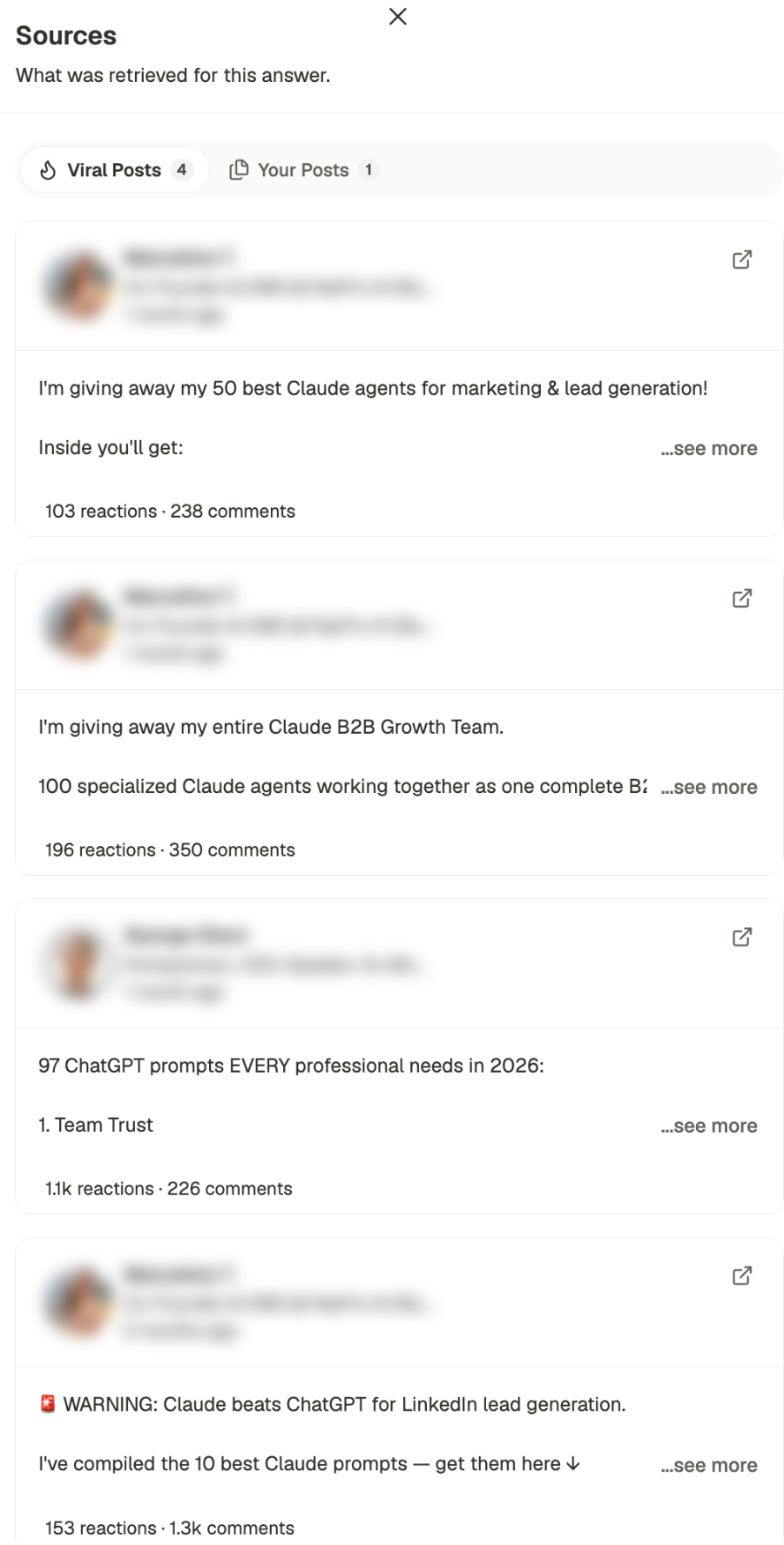 It opens headed **What was retrieved for this answer**, with a tab and a count per source
type. Each card shows the author and their headline, the post itself, how it performed, and
how long ago it was published, plus a link out to the original.
Author names and photos are blurred in this screenshot. They're real LinkedIn creators,
and the panel is being shown here to explain the layout rather than to point at anyone.
This is the fastest way to answer three questions: whether a claim is actually backed by
something, why the output leaned the way it did, and whether a source you were counting on
turned out to be empty.
No Sources chip usually means nothing was retrieved — either you were on **Fast**, or the
sources you left on had nothing matching your request. Both are worth knowing before you
publish what came back.
## Where context comes from
Each source is only as good as what's behind it. If a source is switched on but empty,
it contributes nothing:
* **Past Posts** fills up as you publish through Depost AI and as your LinkedIn history syncs
* **Bookmarks** is what you've saved — see [Inspiration](/inspiration/overview)
* **Viral Posts** is maintained for you; nothing to set up
* **Content Library** is what you've uploaded — see [Library](/library/overview)
* **Web Search** needs nothing
If an answer feels thin, check whether the source it should have drawn on actually has
anything in it yet. A source can be switched on and still contribute nothing. A new
workspace with an empty library gets generic output for the same reason a new notebook
does.
## Related
Starting a chat and what you can ask for.
Bring a specific file into one request.
Upload the documents that Content Library draws on.
Build the bookmarks and creator list behind your saved examples.
It opens headed **What was retrieved for this answer**, with a tab and a count per source
type. Each card shows the author and their headline, the post itself, how it performed, and
how long ago it was published, plus a link out to the original.
Author names and photos are blurred in this screenshot. They're real LinkedIn creators,
and the panel is being shown here to explain the layout rather than to point at anyone.
This is the fastest way to answer three questions: whether a claim is actually backed by
something, why the output leaned the way it did, and whether a source you were counting on
turned out to be empty.
No Sources chip usually means nothing was retrieved — either you were on **Fast**, or the
sources you left on had nothing matching your request. Both are worth knowing before you
publish what came back.
## Where context comes from
Each source is only as good as what's behind it. If a source is switched on but empty,
it contributes nothing:
* **Past Posts** fills up as you publish through Depost AI and as your LinkedIn history syncs
* **Bookmarks** is what you've saved — see [Inspiration](/inspiration/overview)
* **Viral Posts** is maintained for you; nothing to set up
* **Content Library** is what you've uploaded — see [Library](/library/overview)
* **Web Search** needs nothing
If an answer feels thin, check whether the source it should have drawn on actually has
anything in it yet. A source can be switched on and still contribute nothing. A new
workspace with an empty library gets generic output for the same reason a new notebook
does.
## Related
Starting a chat and what you can ask for.
Bring a specific file into one request.
Upload the documents that Content Library draws on.
Build the bookmarks and creator list behind your saved examples.