> ## Documentation Index
> Fetch the complete documentation index at: https://docs.depost.ai/llms.txt
> Use this file to discover all available pages before exploring further.
# Attachments and voice input
> Bring a file, a library document, or a spoken note into a chat.
Context sources give chat access to your material in general. Attachments do something
narrower: they put one specific thing in front of it for this request.
## Attach a file
Click **+** next to the message box and choose **Add photos & files**.
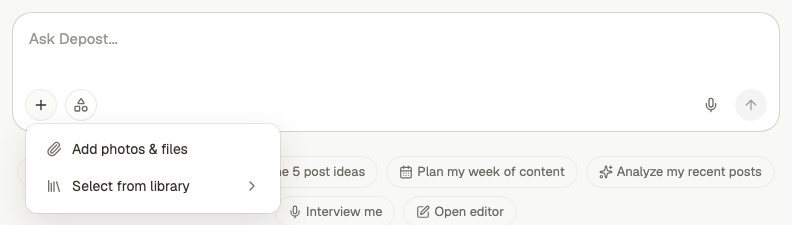 Supported formats:
| Type | Formats |
| ------------ | ----------------------- |
| Documents | PDF, DOC, DOCX, TXT, MD |
| Slides | PPTX |
| Spreadsheets | XLS, XLSX, CSV |
| Data | JSON |
| Images | PNG, JPG, JPEG |
Attach a file when the request is *about that file* — turn this transcript into three
posts, pull the findings out of this report, write about the case study in this deck.
## Pull in a library document
The same **+** menu has **Select from library**, which opens your content library with a
search box. Use this instead of re-uploading something you've already saved.
Attaching one library document is more precise than switching on the whole **Content
Library** context source. Use the attachment when you know exactly which document
matters, and the context source when you want Depost AI to find what's relevant.
Files that have been brought into a conversation are collected under **Files in chat**, so
you can see what the thread is working from.
## Voice input
Dictate instead of typing. The microphone sits at the right of the message box, next to
send.
Supported formats:
| Type | Formats |
| ------------ | ----------------------- |
| Documents | PDF, DOC, DOCX, TXT, MD |
| Slides | PPTX |
| Spreadsheets | XLS, XLSX, CSV |
| Data | JSON |
| Images | PNG, JPG, JPEG |
Attach a file when the request is *about that file* — turn this transcript into three
posts, pull the findings out of this report, write about the case study in this deck.
## Pull in a library document
The same **+** menu has **Select from library**, which opens your content library with a
search box. Use this instead of re-uploading something you've already saved.
Attaching one library document is more precise than switching on the whole **Content
Library** context source. Use the attachment when you know exactly which document
matters, and the context source when you want Depost AI to find what's relevant.
Files that have been brought into a conversation are collected under **Files in chat**, so
you can see what the thread is working from.
## Voice input
Dictate instead of typing. The microphone sits at the right of the message box, next to
send.
 While you talk, the box becomes a waveform with a running timer. The cross discards the
recording. The tick ends it and transcribes what you said.
While you talk, the box becomes a waveform with a running timer. The cross discards the
recording. The tick ends it and transcribes what you said.
 The transcription arrives in the message box as editable text, so nothing is sent until you
have read it.
This is genuinely useful for a specific case: describing an idea out loud usually produces
more detail than typing it. If your prompts tend to be one line, try saying the same thing
instead — you'll give Depost AI noticeably more to work with.
Say who the post is for, what happened, and what you want the reader to do. Don't
script it.
The tick transcribes. Fix names and technical terms, which are what dictation gets
wrong.
A rambling spoken brief beats a tidy one-line prompt almost every time.
## Related
Choose which of your material Depost AI draws on.
Save documents once and reuse them across chats.
The transcription arrives in the message box as editable text, so nothing is sent until you
have read it.
This is genuinely useful for a specific case: describing an idea out loud usually produces
more detail than typing it. If your prompts tend to be one line, try saying the same thing
instead — you'll give Depost AI noticeably more to work with.
Say who the post is for, what happened, and what you want the reader to do. Don't
script it.
The tick transcribes. Fix names and technical terms, which are what dictation gets
wrong.
A rambling spoken brief beats a tidy one-line prompt almost every time.
## Related
Choose which of your material Depost AI draws on.
Save documents once and reuse them across chats.