> ## Documentation Index
> Fetch the complete documentation index at: https://docs.depost.ai/llms.txt
> Use this file to discover all available pages before exploring further.
# Calendar
> See everything scheduled and published, and move posts around.
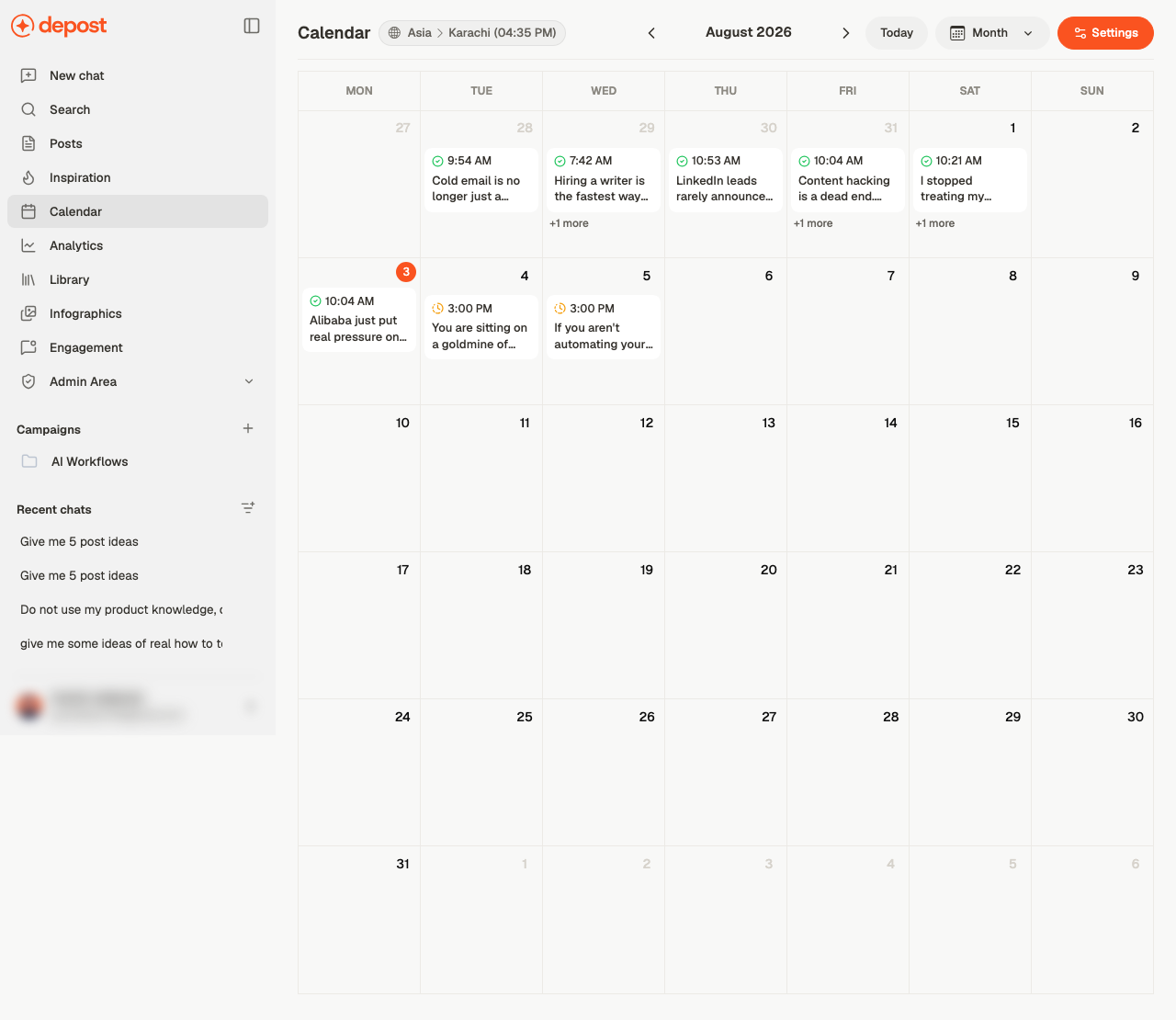
The calendar is the publishing view: what's going out, and when.
 ## Getting around
* **Month** switches the view
* The arrows either side of the month move through time
* **Today** brings you back
* Your timezone is shown at the top, next to the current local time — worth glancing at if
you work across regions
Where a day holds more posts than fit, a **+1 more** link opens the rest.
## Working with a post
Click a post to open it. **Post actions** on each entry covers the rest without leaving the
calendar.
Drag a post to a different day to reschedule it. That's the fastest way to space out a week
that's become lopsided.
## Empty slots
If **Show Empty Slots** is on, your unused posting times appear on the calendar as gaps you
can fill. It turns the calendar from a record of what's scheduled into a prompt for what
isn't — which is the more useful of the two.
## Related
Timezone, posting windows, and preferences.
Getting a post onto the calendar.
The same posts, arranged by status instead of date.
What Scheduled, Published and Failed mean.
## Getting around
* **Month** switches the view
* The arrows either side of the month move through time
* **Today** brings you back
* Your timezone is shown at the top, next to the current local time — worth glancing at if
you work across regions
Where a day holds more posts than fit, a **+1 more** link opens the rest.
## Working with a post
Click a post to open it. **Post actions** on each entry covers the rest without leaving the
calendar.
Drag a post to a different day to reschedule it. That's the fastest way to space out a week
that's become lopsided.
## Empty slots
If **Show Empty Slots** is on, your unused posting times appear on the calendar as gaps you
can fill. It turns the calendar from a record of what's scheduled into a prompt for what
isn't — which is the more useful of the two.
## Related
Timezone, posting windows, and preferences.
Getting a post onto the calendar.
The same posts, arranged by status instead of date.
What Scheduled, Published and Failed mean.